Workspaces in Portal
Workspaces is a Portal tool designed to offer a complete and centralized view of the status and performance of devices within an organization.
Through an intuitive interface, it allows you to monitor key information from each device, access technical details, review alerts, operations, and sessions, as well as manage updates, services, and system components.
The main goal of Workspaces is to facilitate the administration and monitoring of appliances, optimizing decision-making through accurate, up-to-date, and visually organized data.
Overview
The main view of Workspaces shows a table with the list of all appliances in the organization, along with the following information:
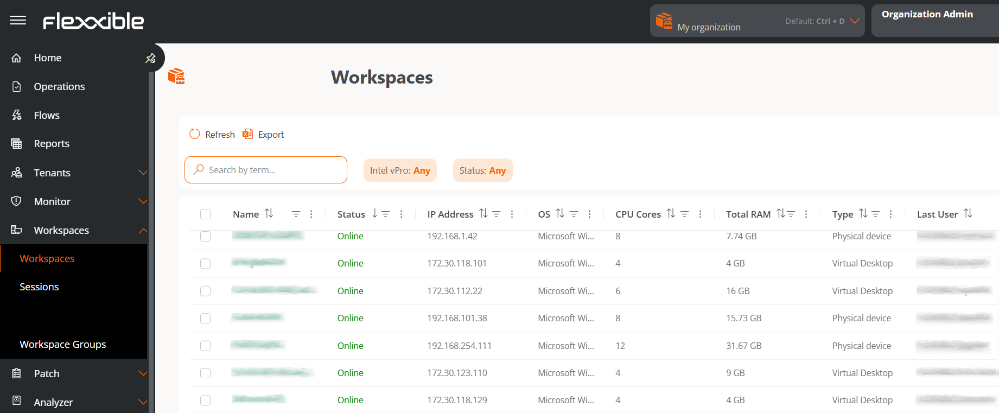
- Name. Device Name.
- Status. Current status (Online or Offline).
- IP Address. IP assigned to the appliance
- OS. Installed operating system.
- CPU Cores. Number of processor cores.
- Total RAM. Total RAM memory (in MB).
- Type. Indicates if the appliance is physical or virtual.
- Last User. Name of the last user who accessed the appliance.
- Creation Date. Date when the appliance was registered.
- Intel vPro Enterprise. Indicates whether the device supports Intel® AMT technology and is ready to receive operations from this technology.
- Not supported: The workspace does not support Intel® AMT, therefore it will not benefit from the Intel vPro® Enterprise integration.
- Requires attention: The workspace supports Intel® AMT technology, but the Intel® EMA Agent has not been installed.
- Ready: Supports Intel® AMT technology. For more information, please refer to the documentation on the Intel vPro Enterprise integration.
Device detail view
By clicking on the name of an appliance, you access its detail view. At the top, its status is shown: Online (green background) or Offline (gray background).

The detail view is organized into the following tabs:
- Overview
- Diagnosis
- Installed applications
- Current active alerts
- Intel vPro
- Operations
- Sessions
- Windows Services
- Disks
- All reporting groups
- PnP Events
- PnP Errors
- CrowdStrike Detections
- Version History
- Boot history
- Installed updates
- Pending updates
Overview
At the top of this view, a group of cards facilitate reading device data: Status, Operating System (OS), Type, User, Intel vPro Enterprise, Connection, IP Address, FlexxAgent version and FlexxAgent last report.
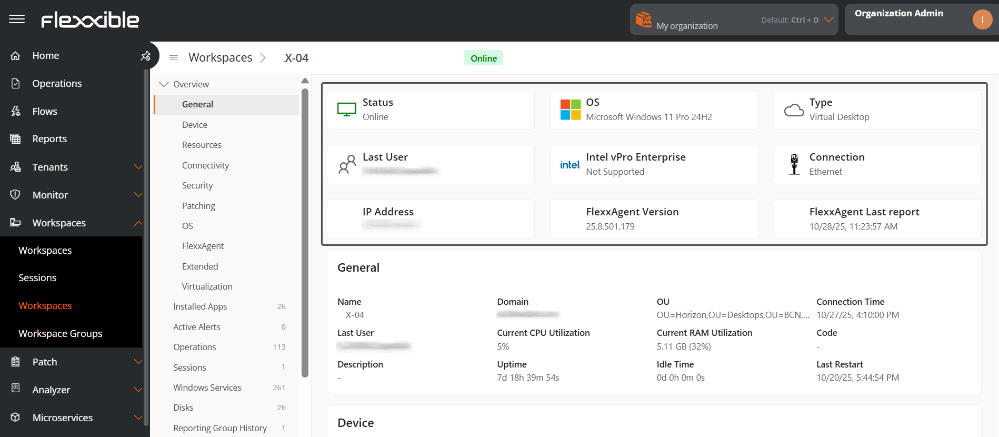
Below, ten sections offer detailed information:
1. General
- Name. Identifier assigned to the appliance within the network or system. Generally corresponds to the hostname configured in the operating system.
- Domain. Name of the domain to which the appliance belongs within the network infrastructure.
- OU. Organizational unit where the appliance is located within the domain.
- Connection Time. Total duration of the current session or the time elapsed since the appliance last connected to the server or network.
- Last User. Name of the user who last logged into the appliance.
- Current CPU Utilization. Percentage of use of the central processing unit (CPU) at the time of the query. Indicates the system workload.
- Current RAM Utilization. Percentage of RAM memory currently in use by the system and active applications. Allows evaluating resource consumption.
- Code. Unique identifier or internal code assigned to the appliance for inventory or administrative management purposes.
- Description. Descriptive information about the appliance, any additional relevant detail.
- Uptime. Period of time that the appliance has remained on and continuously operating since the last reboot.
- Downtime. Period during which the appliance has been off, disconnected, or out of service.
- Last Reboot. Date and time the appliance was last rebooted. Useful for monitoring system stability and maintenance.
2. Appliance
- Operating System Manufacturer. Company or entity responsible for the development and distribution of the operating system installed on the appliance.
- System Model. Specific hardware model identification according to the manufacturer. Allows recognizing the version or line of the device.
- System Type. Classification of the appliance according to its architecture or purpose (e.g.: workstation, laptop, server, virtual machine, etc.).
- System SKU. Commercial reference code (Stock Keeping Unit) assigned by the manufacturer to identify the exact configuration of the model.
- Processor. Technical details of the installed CPU, including manufacturer, model, clock speed, and architecture.
- BIOS Date. Date of the current BIOS or UEFI version installed on the system. Indicates when it was issued or updated by the manufacturer.
- BIOS Serial Number. Unique identifier associated with the specific BIOS version of the appliance.
- Platform role. Main function of the appliance within the environment (for example: desktop, virtual machine, etc.).
- Boot Device. Unit or medium from which the operating system starts.
- Regional Configuration. Language setting configured on the system.
- Time Zone. Time zone set on the system for date and time synchronization.
- Last Boot Duration. Total time it took the system to complete the startup process from powering on to being operational.
- Fast Startup. Indicates if the Fast Startup feature is enabled.
3. Resources
- CPU Cores. Total number of physical cores available in the processor. Directly affects performance and parallel processing capability.
- Total RAM. Total amount of physical memory (RAM) installed in the appliance.
- Paging File Space. Total disk space assigned to the paging file used to extend virtual memory.
- Paging File. Location and name of the file used by the operating system to manage virtual memory.
- System Disk Usage. Percentage or amount of space currently occupied on the main drive where the operating system is installed.
- Total Hard Disk Size. Total physical storage capacity of the main disk or system drive.
4. Connectivity
- Connection. Type of active network connection (e.g.: wired, wireless, VPN, virtual network).
- IP Version. Internet Protocol used by the network interface.
- IP Address. Address assigned to the appliance within the local network for identification and communication.
- Subnet. Network range that determines the segment to which the IP address belongs.
- Default Gateway. IP address of the router or device that allows communication with external networks.
- MAC Address. Unique physical identifier assigned to the appliance's network card.
- Network Changed. Indicates if the appliance has recently changed networks.
- Public IP. Externally visible IP address assigned by the Internet Service Provider (ISP).
- ISP. Internet Service Provider. Company that provides Internet connection to the appliance or local network.
- Location. City or geographic location associated with the detected public IP.
- Country. Country corresponding to the geographic location of the public IP.
- Last Network Information Update. Date and time when the connectivity information of the appliance was last updated.
5. Security
- Encrypted Hard Disk. Indicates if the appliance's main storage is secured through encryption.
- Secure Boot Status. Shows if the Secure Boot function of the BIOS/UEFI is enabled to prevent unauthorized software from loading during startup.
- Kernel DMA Protection. Indicates if the system has enabled direct memory access (DMA) protection to prevent attacks on the kernel from external devices.
- EDR. Endpoint Detection and Response. Name or solution implemented for advanced security for threat detection and response at the endpoint.
- EDR status. Operational state of the solution.
- Antivirus. Name of the antivirus solution installed or integrated into the system.
- Antivirus status. Operational state of the solution.
6. Update
- Target. Update policy to which the appliance belongs.
- Number of Pending Updates. Total number of updates that are available but not yet installed on the system.
- Last Windows Update. Date and time when the most recent update of the Windows operating system was installed.
- Reboot Pending. Indicates if the system requires a reboot to complete the installation of updates or other configuration changes.
- Number of Days Since Last Windows Update. Time interval (in days) since the last successful installation of operating system updates.
7. OS
- OS. Full name of the operating system installed on the appliance.
- Operating System Version. Specific version number of the operating system indicating its current revision or update level.
- OS Build. Number of the internal build of the operating system reflecting the exact set of updates applied.
- Windows Directory. Path of the root directory where the Windows operating system is installed.
- System Directory. Path of the subdirectory containing the main files of the operating system.
8. FlexxAgent
- Report Group. Name of the reporting group to which the appliance belongs.
- Version. Version number of FlexxAgent installed on the appliance.
- Status. Indicates if it is stopped or running.
- Last Report. Date and time when FlexxAgent sent its last report to the appliance.
- Session Analyzer. Indicates if the Analyzer session is configured or not on the appliance.
- Session Analyzer Version. Indicates the version number of the Analyzer session on the appliance.
- Uninstall Protection. Indicates if the uninstallation protection is enabled or not.
9. Extended
- SMBIOS Version. Version of the System Management BIOS implemented on the system.
- Embedded Controller Version. Version of the embedded firmware or controller.
- BIOS Mode. Indicates if the system operates in Legacy BIOS mode or UEFI.
- Motherboard Manufacturer. Company responsible for the design and production of the appliance's motherboard.
- Motherboard Model. Identification or reference of the specific motherboard model installed.
- Motherboard Version. Number or code that specifies the revision or version of the motherboard design.
- Unique ID. Unique identifier assigned to the appliance or system.
- Windows Type. Type of license or edition of the Windows operating system.
- Creation Date. Date and time when the original installation of the operating system was performed.
10. Virtualization
- Hypervisor. Virtualization software or platform that manages virtual machines.
- Farm / Cluster. Set of servers or nodes grouped to run and manage virtual machines together.
- Broker. Intermediate server responsible for managing user connections to virtual machines or remote desktops.
- Delivery Group. Set of virtualized desktops or applications.
- Status. Current operational status of the virtual machine.
- Citrix XD Status. Specific status of the appliance within the Citrix environment.
- Registration Status. Indicates if the appliance or virtual machine is correctly registered in the management system or broker.
- Maintenance Mode. Defines if the machine is marked for maintenance tasks, preventing its allocation to end users.
- Type. Classification of the virtual resource.
- Group / Catalog Name. Name assigned to the group or catalog of virtual machines within the virtualization environment.
- Connected From. IP address, hostname, or location from which the user established the connection to the virtual environment.
Diagnosis
This section allows you to analyze the resource consumption of a device based on the use of applications and system processes used during a user's session.
To view the data, you need to select beforehand:
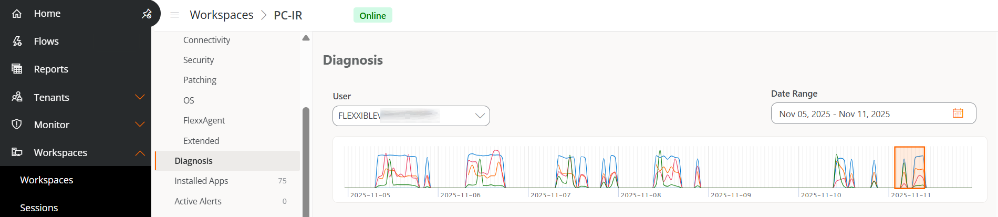
- User. If the device has more than one user session started, it allows you to choose the one you want to analyze.
- Date range. Defines the week of the analysis. By default, the data from the last seven days is shown.
Selection chart
Once the user and date range are selected, the selection chart provides an overview of resource consumption. It represents, with colored lines, the behavior of each system resource (CPU, RAM, GPU, Network, and Disk) during the indicated period.
The time window (orange box) allows you to specify a seven-hour time range. When moving it, the lower charts, corresponding to each system resource, will update their data to show the consumption details during those hours.
Performance Charts
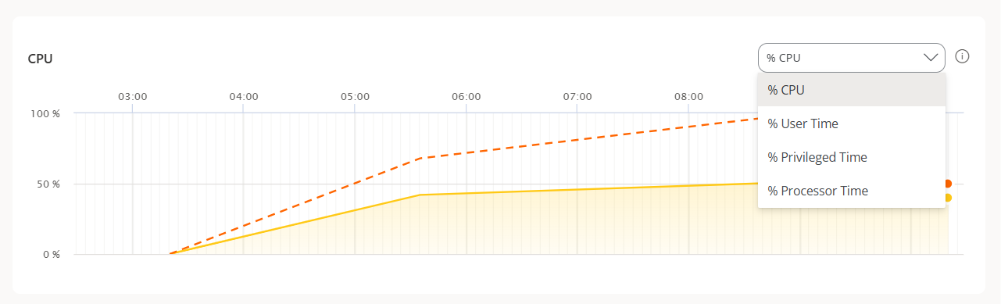
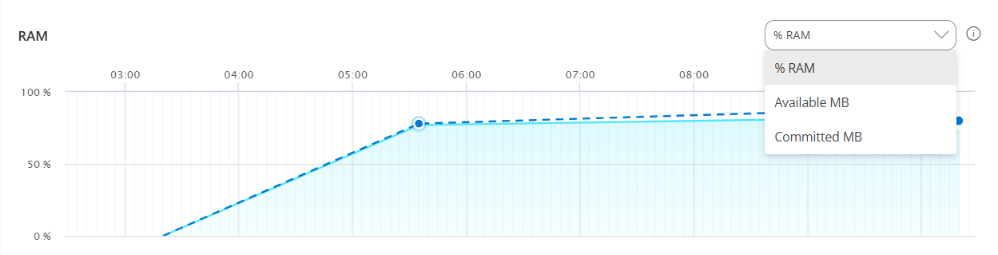
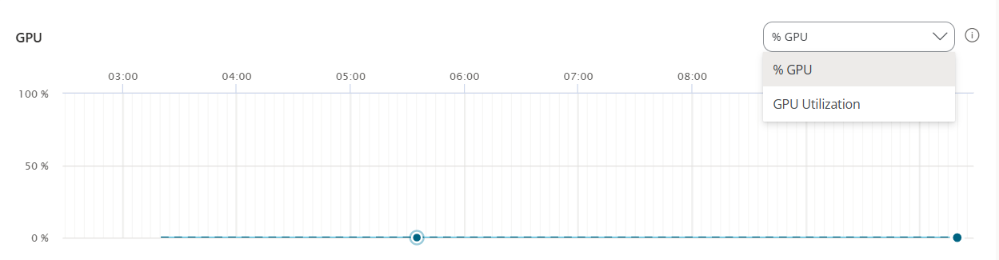
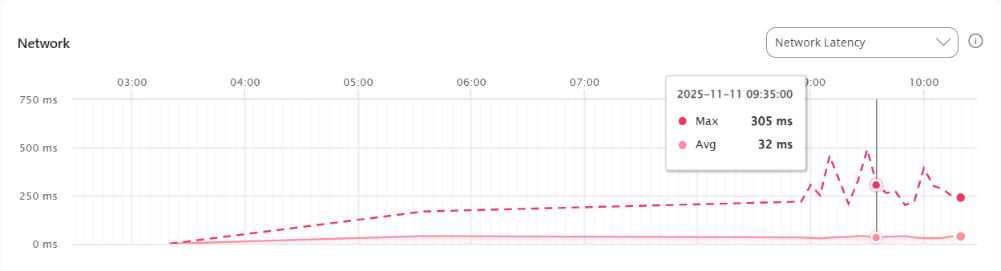
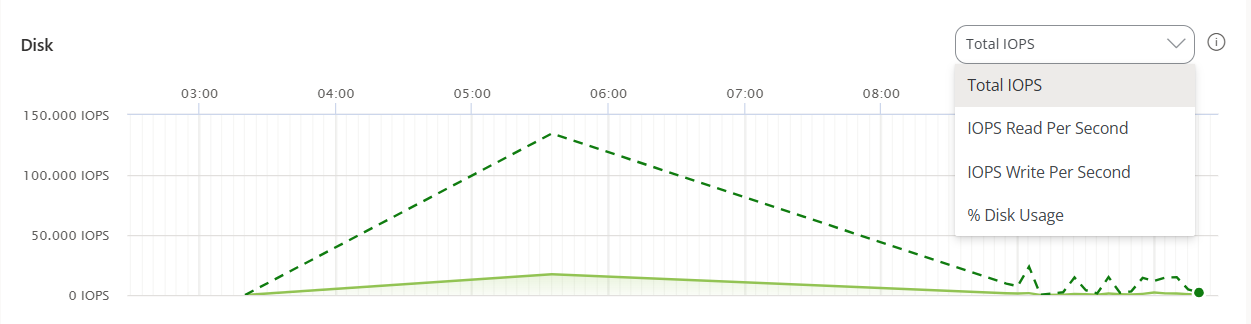
Diagnosis allows you to analyze the behavior of each system resource through five graphs. CPU, RAM, GPU, Network, and Disk. Each of them has a dropdown with specific parameters that allow filtering the results.
Hovering over a point on the chart displays detailed information: date, time, maximum and minimum value of the respective parameter.
Parameters by type of system resource
CPU
- % CPU. Total percentage of CPU utilization across all cores.
- % User Time. Percentage of CPU time dedicated to executing processes in user mode.
- % Privileged Time. Percentage of CPU time dedicated to executing system operations (kernel).
- % Processor. Total CPU time used across all processes and system activities.
RAM
- % RAM. Percentage of physical memory currently in use.
- Available MB. Amount of free RAM available to run new applications without causing performance issues.
- Committed MB. Amount of virtual memory that has been committed.
GPU
- % GPU. Percentage of the graphic processing unit (GPU) capacity currently being used.
- GPU Utilization. Percentage of time the GPU is actively processing.
Network
- Network Latency. Maximum latency of all listed applications and processes.
Disk
- Total IOPS. Total input/output operations per second for disk activity.
- Read IOPS per second. Number of read operations per second from the disk.
- Write IOPS per second. Sum of write operations from applications and processes.
- % Disk usage. Percentage of the disk input and output capacity being used.
Applications and Processes Tables
At the bottom are the Applications and Processes tables, showing the data corresponding to the most recent moment of the time range chosen in the selection chart.
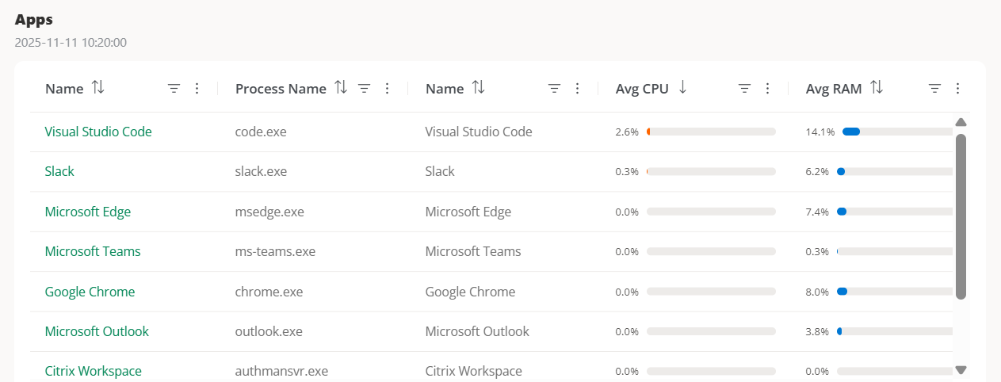
Applications
Displays the active applications on the device. Each row includes the following fields:
- Name. Application name.
- Process Name. Process associated with the application.
- Average CPU. Average percentage of CPU utilization.
- Average RAM. Average percentage of physical memory in use.
- Average GPU. Average percentage of GPU utilization.
- Average Total IOPS. Average input/output operations per second.
- Average Read IOPS. Average read operations per second.
- Average Write IOPS. Average write operations per second.
- Maximum Network Latency. Maximum latency recorded for the application.
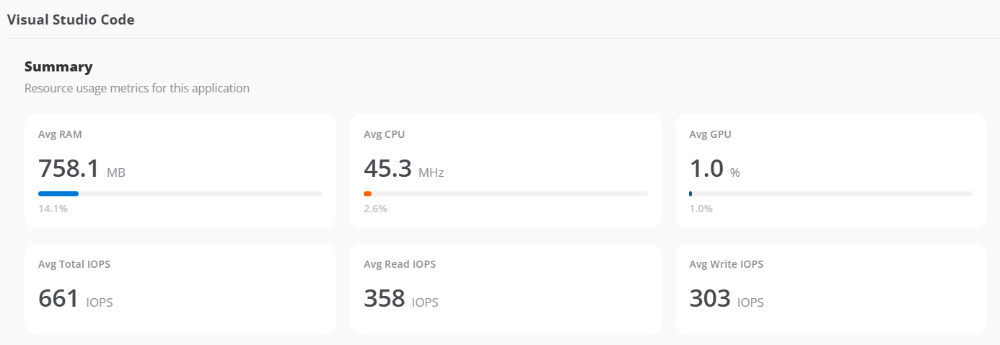
Summary Box
Selecting an application from the table provides access to a more visual summary box, with its system resource usage metrics.
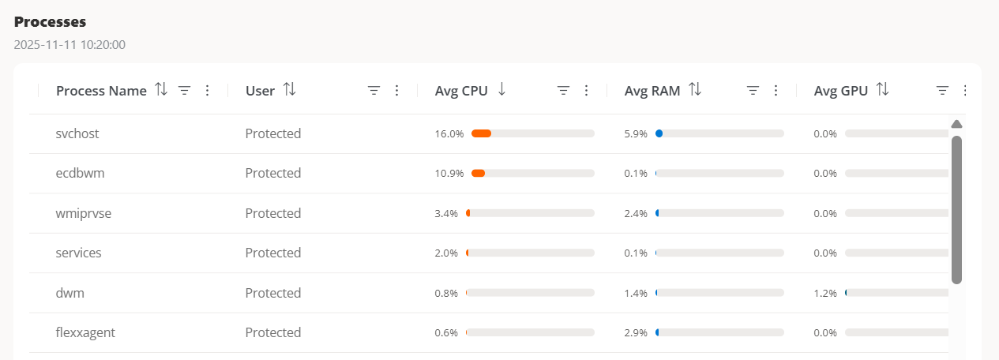
Processes
Displays the active processes on the device. Each row includes the following fields:
- Name. Name of the product or process.
- Process Name. Name of the executable.
- User. User executing the process.
- Average CPU. Average percentage of CPU utilization.
- Average RAM. Average percentage of physical memory in use.
- Average GPU. Average percentage of GPU utilization.
- Average Total IOPS. Average input/output operations per second.
- Average Read IOPS. Average read operations per second.
- Average Write IOPS. Average write operations per second.
- Maximum Network Latency. Maximum latency recorded for the process.
Installed apps
It displays a table with all the applications detected by FlexxAgent Analyzer on the device.
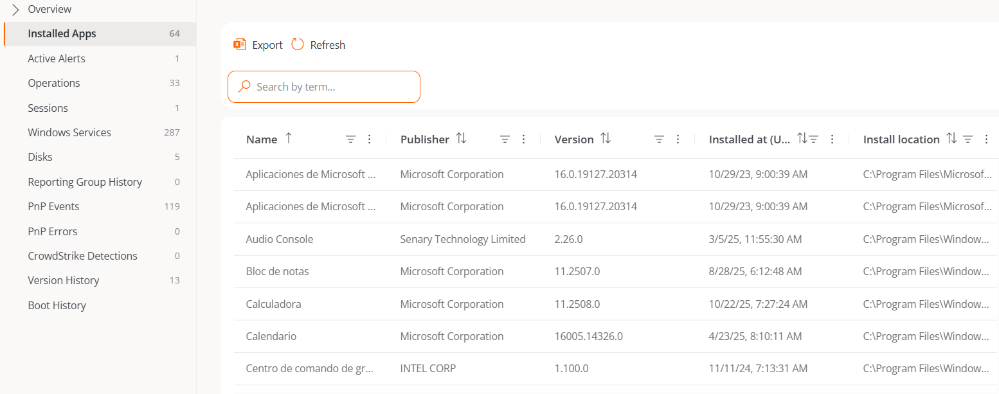
The information includes:
- Name. Name of the application installed on the device.
- Publisher. Company that developed the application.
- Version. Version of the application.
- Installed on. Date it was first reported on the device.
- Installation location. Folder where the application is located.
- Last report. Date of its last report on the device.
The information provided by Installed Applications is collected by FlexxAgent Analyzer when its process starts. From that moment, the data is updated every 12 hours, as long as there is a user session started, or at each login.
Active alerts
Presents a table with the active alerts found on the appliance.
The information includes:
- Severity. Severity level (Critical, Warning, or Informational).
- Alert Name. Name identifying the alert. You can click on it for more details.
- Information. Description of the alert.
- Start Date. Date and time the alert is recorded.
- Notification Date. Date and time of the alert notification.
- Element. Name of the device where the alert is recorded.
Intel vPro
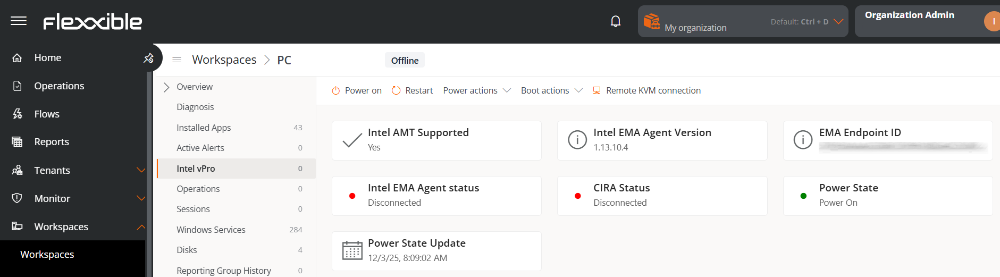
From this tab, you can view detailed information about the Intel EMA agent installed on the device and access out-of-band management functions, even when the operating system is not available.
Information Detail
- Compatible with Intel AMT. Indicates whether the device is compatible with Intel Active Management Technology.
- EMA Agent Version. Version number installed on the device.
- Intel EMA ID. Unique identifier assigned by Intel EMA.
- Intel EMA Agent Status. Indicates whether the agent is Connected or Disconnected.
- CIRA Status. Indicates whether Client Initiated Remote Access, used for secure remote access, is Connected or Disconnected.
- Status. Indicates whether the device is On or Off.
- Power Status Update. Date and time of the last power status modification.
Available actions
Intel vPro allows remote management operations even when the operating system has not started or the device is unresponsive. These actions are executed out-of-band, accessing the hardware directly.
-
Turn On. Turns on the device.
-
Restart. Restarts the device.
-
Power Actions: Gradual Shutdown, Gradual Restart, Shutdown, Suspend, Hibernate.
-
Boot Actions
- Boot to BIOS. Allows direct BIOS startup on devices that cannot boot their operating system.
-
Remote KVM Connection. Provides a direct view of the device's screen to control it as if you were physically in front of it, even when the operating system does not load.

This function allows:
- View the device's screen in real-time.
- Diagnose and solve problems in geographically distributed environments or with limited IT resources, as it avoids in-person interventions.
Power on schedules
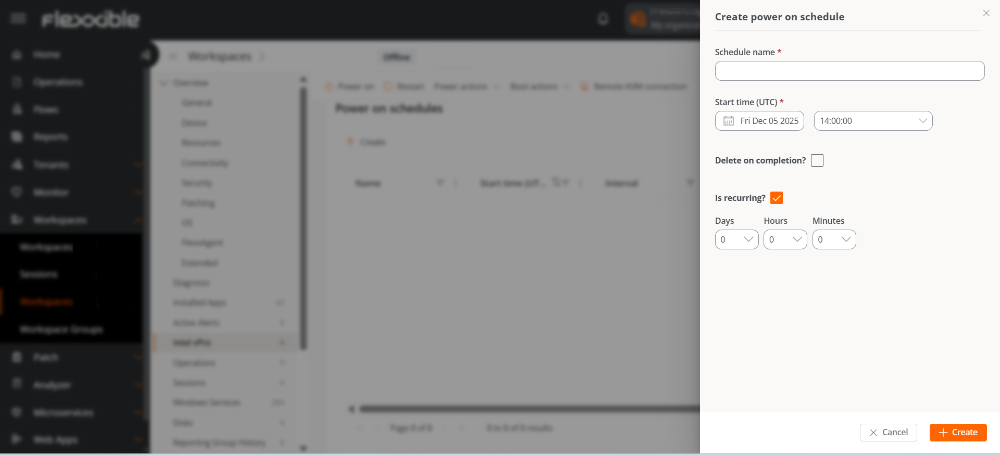
This technology also allows setting the date, time, and recurrence for the device's auto power-on.
Create a schedule
- In Portal, access
Worksaces->Workspaces. - Select a device from the list.
- In the sidebar menu, select the
Intel vProtab. - In the
Power on schedulessection, clickNew. - Fill in the requested data in the form:
- Program Name. Name of the power-on schedule.
- Start Time (UTC). Date and time when the device will be turned on, in UTC.
- Delete After Completion? If selected, once the power-on is executed, the schedule will be deleted.
- Is it recurrent? If activated, allows you to specify every how many days and at what time the device will be turned on.
- Click on
New.
Operations
Lists the operations recorded on the appliance, including:
- Operation Name. Type of operation performed on the device.
- Status. Status of the operation (Successful or Failed).
- Created On. Date and time the operation was created.
- Start Date. Date and time the operation started.
- End Date. Date and time the operation ended.
- Owner. Email of the user who performed the operation.
Sessions
Shows the active or recorded sessions, with details like:
- User. Name of the user who logged into the device.
- Session Type. Type of session started (Device or Application, for virtualized application sessions).
- Windows Session ID. Unique identifier assigned to each user session.
- Connection Status. Status of the session connection (Disconnected or Active).
- Start Date. Date and time the session started.
- CPU Usage. Percentage of processor usage for the session, excluding resources used by other sessions or system processes.
- RAM Usage. Amount of volatile memory used by the activities and applications of a specific user during a session.
- RTT Usage. Time it takes for a data packet to travel from the user's device to a remote server or destination and back to the user.
Windows services
Contains the list of operating system services, including:
- Display Name. Name of the programs that run in the background.
- Status. Status of the Windows services (Running or Stopped).
- Startup Type. How the service has been activated (Automatic, Manual, or Disabled).
- Log On As. Mode of login.
- Accept Stop. Whether or not to stop Windows services (Yes or No).
Disks
Displays the partitions of the appliance with the following information:
- Device ID. Name of the device.
- Name. Name of the main disk partition.
- Encryption. Indicates whether the device is encrypted or not, or if no value is available (N/A).
- Encryption Method. Indicates the encryption method.
- Volume Label. Name of the volume label.
- Total Size. In megabytes, total disk space.
- Used Size. In megabytes, disk space used.
- Used Percentage. In percentage, disk space used.
- Unit OS. Unit possession (Yes or No).
- Location. Disk location access path.
- Partition. Indicates the number of storage divisions the disk has.
Reporting groups history
Shows the current and previous report groups of the appliance:
- Source. Reporting group the device comes from.
- Destination. Reporting group the device is entering.
- Assignment Type. Manual or Automatic assignment.
- Requested Date. Date and time of the device's reporting group change.
PnP Events
Shows a table with the list of Plug and Play events that have been recorded on the appliance. The information includes:
- Action. Hardware component state (printer, mouse, etc.) with respect to the device (Plugged or Unplugged).
- Date. Last PnP update registered by FlexxAgent.
- User. User currently using the device.
- Description. Hardware component connected to the device.
- Device ID. Identification code of the hardware component connected to the device.
PnP Errors
Shows a table with the list of Plug and Play errors that have been recorded on the appliance. The information includes:
- Name. Name of the hardware component connected to the device.
- Update Date. Last PnP update registered by FlexxAgent.
- Class. Type of hardware component connected to the device.
- Device ID. Identification code of the hardware component connected to the device.
CrowdStrike Detections
If the CrowdStrike integration is performed from Portal, a table will be displayed with information about threat detections, including the following fields:
- Severity. Criticality level assigned to the detection according to the potential impact or risk of the threat.
- Created. Date and time the detection was generated in the system.
- Username. User associated with the activity or process that triggered the detection.
- Status. Current status of the detection.
- Display Name. Descriptive name assigned to the detection, summarizing the type of threat or behavior identified.
- Description. Expanded information about the detection.
- Command line. Command or instruction executed on the appliance related to or that generated the detection.
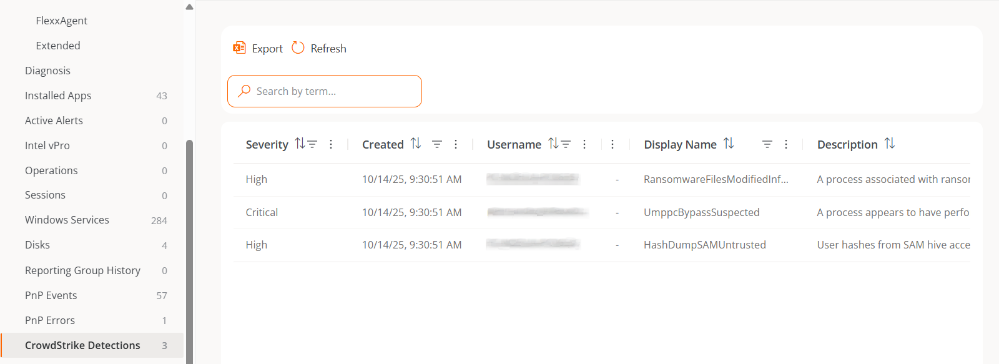
FlexxAgent synchronizes CrowdStrike alerts every minute.
Version history
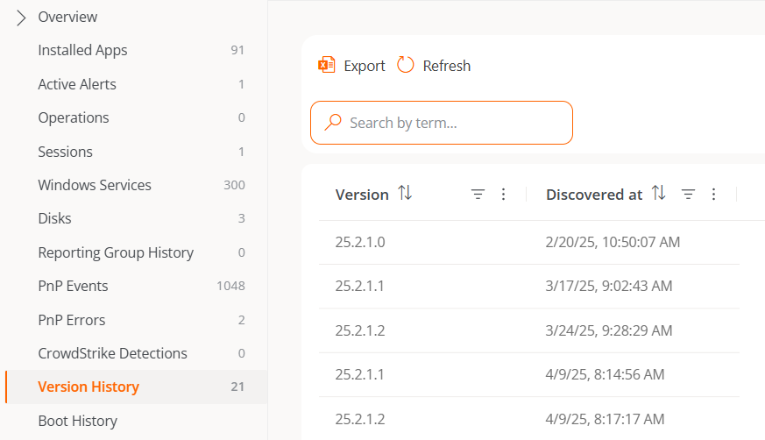
Displays a table with the versions of FlexxAgent that have been registered on the appliance.
- Version. Version number of FlexxAgent detected on the appliance.
- Discovered on. Date and time when the system identified the presence of that version of FlexxAgent on the appliance.
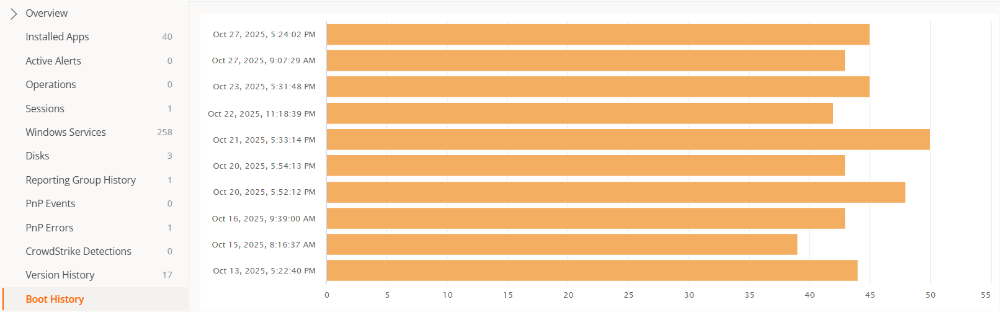
Boot history
Through a chart, this section shows the log of boot time taken by the device.
Installed updates
Displays a table with the list of updates installed on the appliance. The information includes:
- Installation date. Date and time the update was installed on the appliance.
- KB. Unique identifier of the update package issued by Microsoft.
- Title. Name of the update.
- Product. Name of the product to which the update applies.
- Severity. Criticality level assigned to the update according to its importance or impact on security (Critical, Important, Moderate, Low, Unspecified).
- Arrival date. Date when the update was published or made available by the provider.
- Category. Functional or technical classification of the update.
Pending updates
Displays a table with the list of pending updates on the appliance. The information includes:
- KB. Unique identifier of the update package issued by Microsoft.
- Title. Name of the update.
- Product. Name of the product to which the update applies.
- Severity. Criticality level assigned to the update according to its importance or impact on security (Critical, Important, Moderate, Low, Unspecified).
- Arrival date. Date when the update was published or made available by the provider.
- Category. Functional or technical classification of the update.