Web Apps
This section allows access to the list of web applications available in the organization. It includes both applications created by the organization itself and applications added from the Marketplace catalog, regardless of whether they are enabled or disabled.
Web Apps allows:
- Review the details and historical data of each application, even if it is disabled.
- Create custom web applications.
- Enable or disable applications at the organization or sub-organization level.
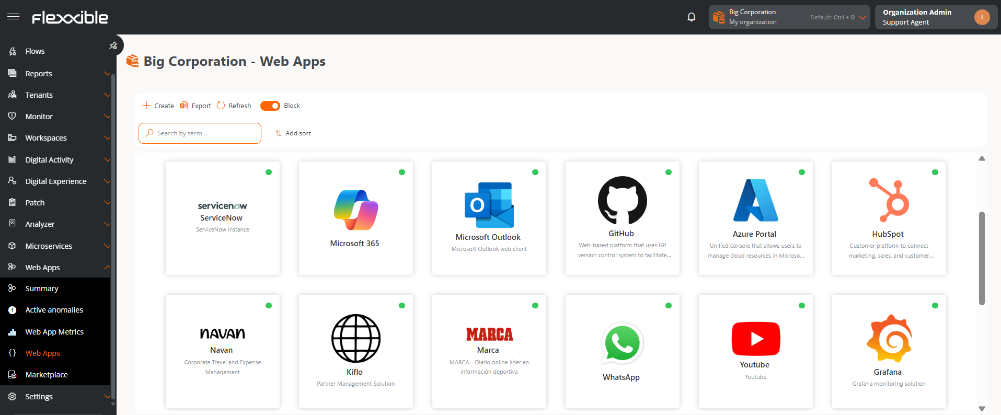
Web applications can be viewed in list or block format. The status is indicated by a color dot:
- Green: application enabled in the organization.
- Grey: application disabled in the organization.
Application details
By selecting an application from the list, you access its detail view, where advanced metrics and specific information about its behavior and usage are displayed.
You can find more information in Web Application Detail.
Create a web application
- Go to
Portal->Web Apps->Web Apps. - Click on
New. - Complete the form with the application's information:
- Name. Primary identification of the application.
- Description. Descriptive summary of the application
- URL. Linked addresses.
- Logo. Identifying image.
- Click on
Save.
Once created:
- The application will appear in the Web Apps list and in Marketplace.
- The application will remain disabled by default until manually enabled
Enable or disable a web application in the organization
- Go to
Portal->Web Apps->Web Apps. - Select an application from the list.
- Click on
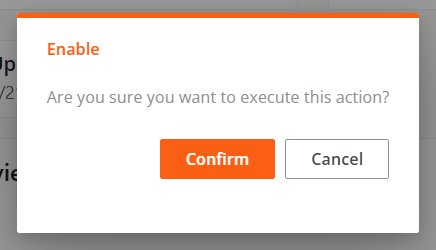
EnableorDisable, as appropriate.

info
Data collection will begin on the next browser start.