Reports
This feature allows you to consult and manage the organization's reports, review their execution history, schedule automatic execution, and share the results.
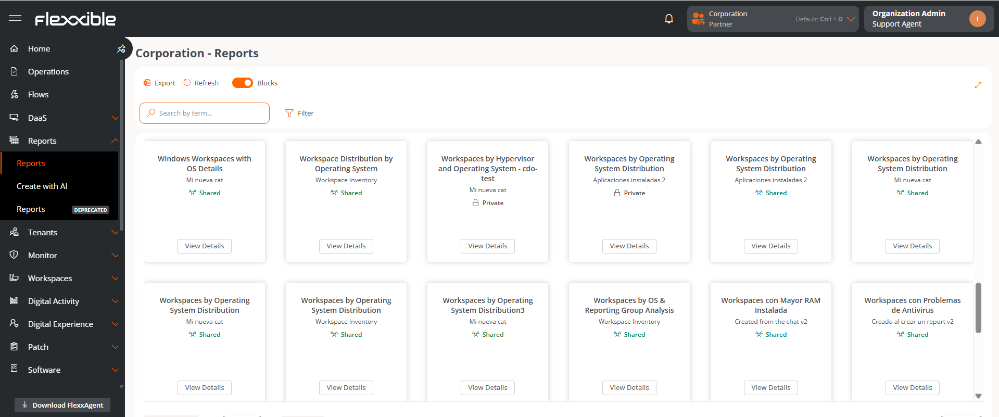
Report list
Shows all the available reports in the organization.
When reports are displayed in block format:
-
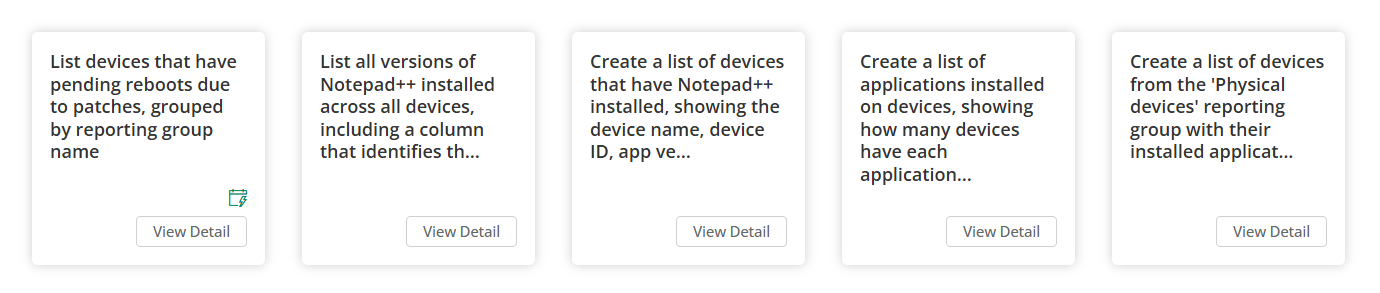
A green calendar icon indicates that the report scheduling is enabled.
-
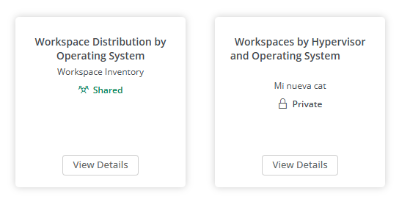
The report visibility info is displayed: Private or Shared.
-
Clicking on the block accesses the preview of its executions.
-
The View Detail button lets you access complete report info and management options.
Available actions
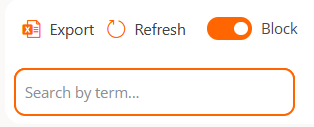
At the top of the list, actions are included such as:
| Action | Caption |
|---|---|
| Export | Download the list of available reports in .csv format. |
| Refresh | Refresh the list of reports. |
| View selector | Switch between block view or table view. |
| Search | Filter the reports by entering characters that match their name. |
Report Detail View
The detail view consists of three sections:
1) Report details
Shows the general information of the report.
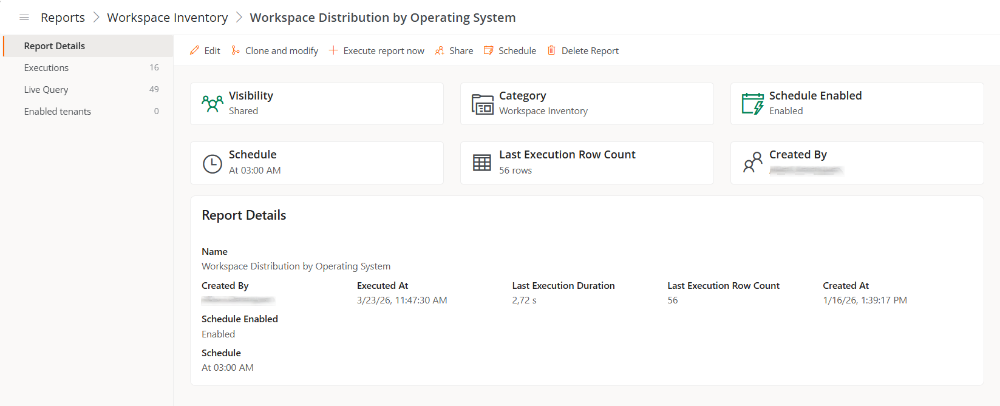
Includes the fields:
- Visibility. Indicates if it's Private or Shared.
- Category. Name of the category to which the report belongs.
- Scheduling enabled. Indicates whether the automatic execution is Enabled or Disabled.
- Scheduling. Summary in natural language of the configured recurrence pattern.
- Results of the last execution. Number of records obtained in the last execution.
- Created By. User who created the report.
- Name. Name of the report.
- Created by. Name of the user who created it.
- Executed On. Date of the first execution.
- Duration of the last execution. Execution time in seconds.
- Results of last execution. Number of records from the last executed report.
- Created on. Date and time of creation.
- Scheduling enabled. Indicates whether scheduling is enabled or not.
- Schedule. If the scheduling is enabled, the time it is scheduled to be executed.
2. Executions
Shows the execution history of the report in table format.
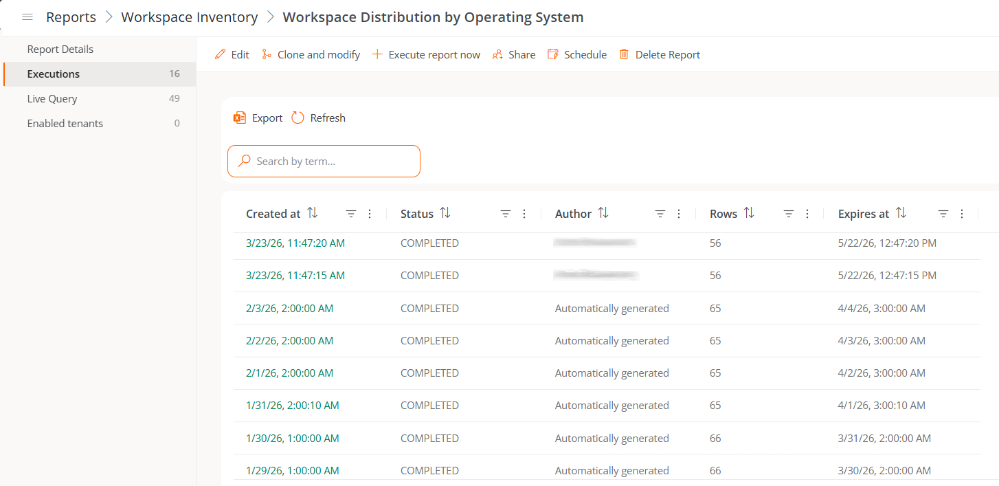
Each record includes:
- Created on. Date and time of generation. Clicking downloads the report in
.csvformat. - Status. Execution status: Complete, Pending, or Error.
- Author. User who executed the report. In scheduled executions it shows Generated Automatically.
- Rows. Number of records included.
- Expires on. Expiration date and time of the file (60 days from creation).
3. Live Query
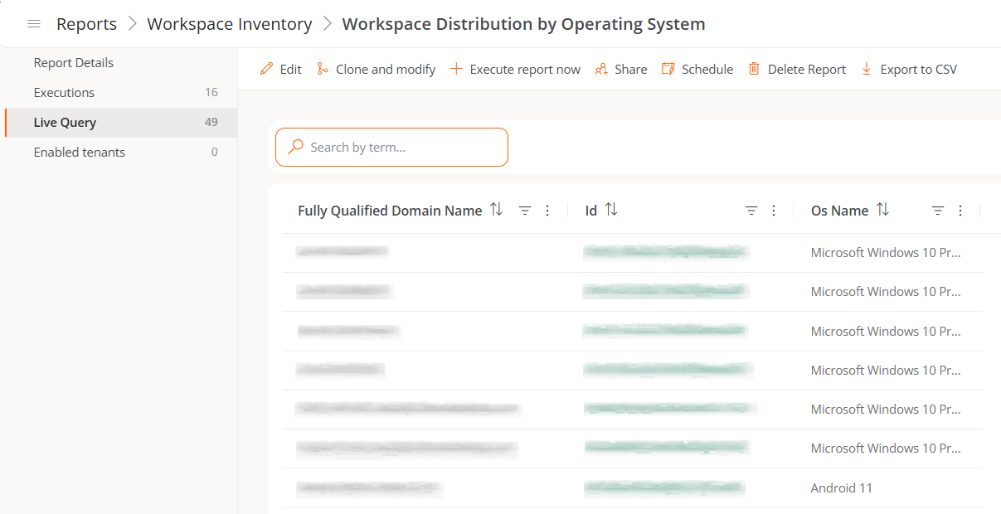
Shows the most recent results in table format.
The structure of the columns may vary depending on the report's data type (devices, installed applications, workspace groups, etc.).
4. Enabled Tenants
In organizations with sub-organizations (delegated tenants), this functionality allows for sharing reports with those sub-organizations and managing their access individually.
For this, a table is displayed from which it is possible to enable or disable the report for each sub-organization. Once enabled, they can view and reuse the shared report.
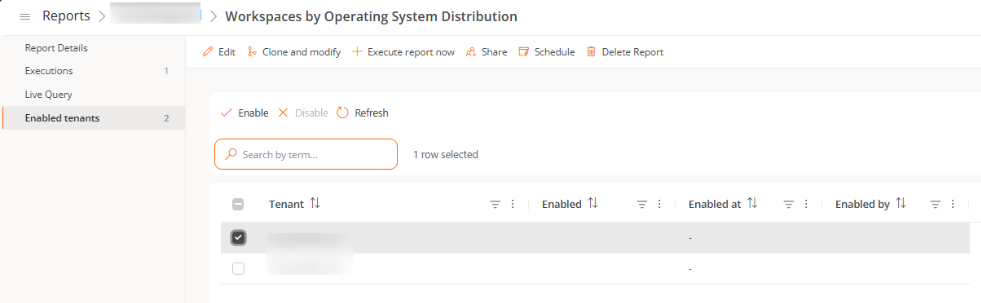
The table contains:
- Tenant. Name of the sub-organization.
- Enabled. Status of the report for the sub-organization (enabled or disabled).
- Enabled on. Date and time the report was enabled.
- Enabled by. The user who enabled the report.
Considerations
-
When enabling a report for a sub-organization, the entire original report configuration is copied for use, except for the following data:
- Schedule
- Sharing emails
- Execution history
-
A sub-organization can assign the report name, its category, and email sharing if desired.
-
Reports enabled in sub-organizations will only display information belonging to that sub-organization, even if the original report includes data from multiple organizations.
-
When disabling a report in a sub-organization, it will be deleted along with all its executions, scheduling, and sharing configuration.
Available actions
From the report detail view, the following actions can be performed:

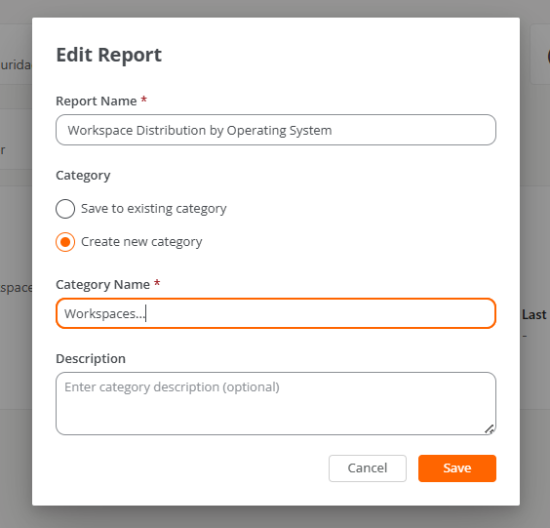
Edit
Allows modifying the report's name and category.
Categories can be set up from the Organization section.
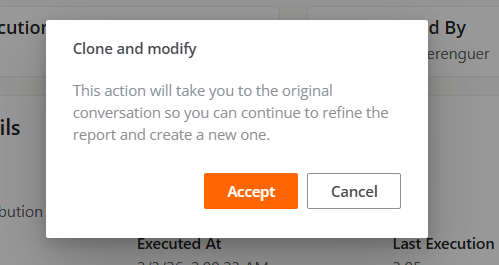
Clone and modify
Redirects to the original conversation to refine the report and create a new one based on the current one.
Run report now
- Executes the query and creates a new entry in the execution history.
- Each manual execution generates an independent file.
- If the report has an active schedule, manual executions do not affect the scheduled calendar.
Share
Allows sending the report to specified recipients.
Steps to share the report:
- Access
Portal->Reports->Reports. - Select
View detailson the report you want to share. - In the actions panel, click on
Share. - Enter email addresses and confirm each by pressing
Enter. - Click on
Save.
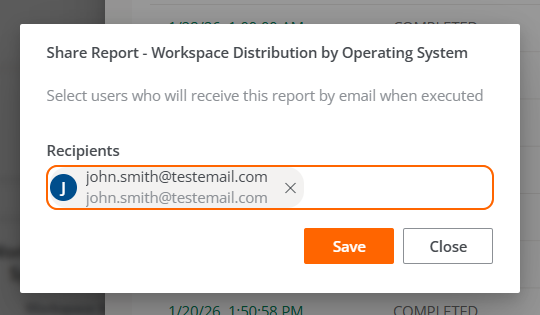
From that moment, recipients will receive the generated reports, both manually and automatically.
Modify the recipients:
- Access
Portal->Reports->Reports. - Select
View Detailson the corresponding report. - Click
Share. - Remove or add email addresses.
- Click on
Save.
Schedule
Allows configuring the automatic execution of the report:
Steps to schedule a report:
- Access
Portal->Reports->Reports. - Select
View Detailson the desired report. - In the action panel, click
Schedulingand configure:
-
Start Time. Time at which the report will be executed.
-
Recurrence Pattern
- Daily: Interval of days or execution from Monday to Friday.
- Weekly: Selection of days of the week and frequency in weeks.
- Monthly: Specific day of the month or pattern based on first/second/third/fourth/last day of the week (Monday to Sunday).
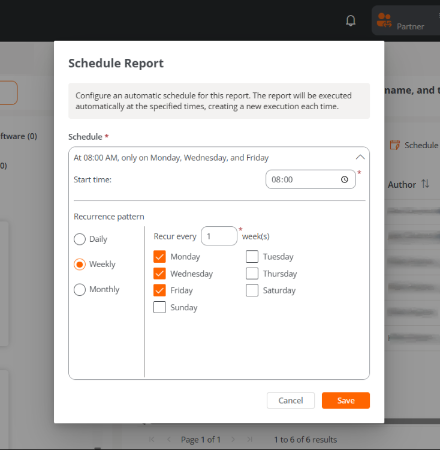
Once the schedule is configured, a summary in natural language of the defined pattern is displayed in the same window.
Delete report
- Permanently deletes the query.
- Deletes generated files.
- Cancels active schedules.
- It can not be undone.
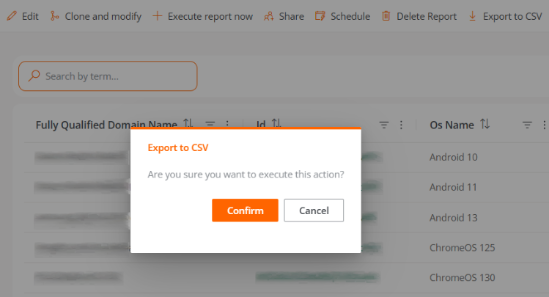
Export to CSV
This action is available from the Live Query tab. Downloads the report in .csv format.
Preview of a report
From the block view, clicking on a report accesses a preview of its executions.
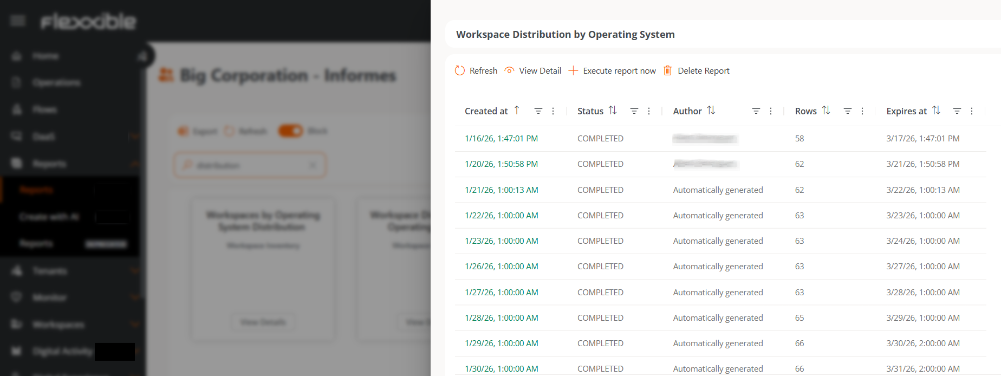
The table includes:
- Created on. Date and time of generation. Clicking downloads the report in
.csvformat. - Status. Execution status: Complete, Pending, or Error.
- Author. User who generated the report. In scheduled executions it shows Generated Automatically.
- Rows. Number of records included.
- Expires on. Expiration date and time of the file (60 days from creation).
From this view you can:

- Update the list of executions.
- Access the detail view.
- Run report now.
- Remove the report.