Flexxible Remote Assistance
Flexxible Remote Assistance (FRA) is a functionality designed to facilitate secure and efficient technical support, allowing an operator to remotely access a device and take control of the user's session to diagnose issues, apply changes, or execute administrative tasks.
The solution enables the management of any application visible to the user, including those requiring privilege elevation or running under User Account Control (UAC), ensuring a temporary operation with a strict focus on security and privacy.
Features
- Compatible with user sessions on physical devices, VDI, shared desktops, and virtualized application environments.
- Works with or without a proxy.
- Supports both end-user devices and unmanned devices (servers or kiosks).
- Compatible with Windows systems.
- Suitable for both one-off support sessions or as a mechanism for remote access to infrastructure (e.g., servers).
- It is performed by running an activation file without administrative permissions.
Privacy and security
-
To minimize the attack surface and reduce the risk of exploiting vulnerabilities, the agent does not install additional software, so no service is "listening" for incoming connections. It only runs (without installation) in real-time when requested.
-
Audio redirection is disabled by default to prevent the operator from hearing user conversations, for example, during video calls.
Requirements
- The device receiving remote assistance must have FlexxAgent 25.10 or higher installed.
- Connectivity to tcp://ras.flexxible.com via TCP port 443.
Settings
Remote assistance configuration can be done at Product or Reporting Groups level.
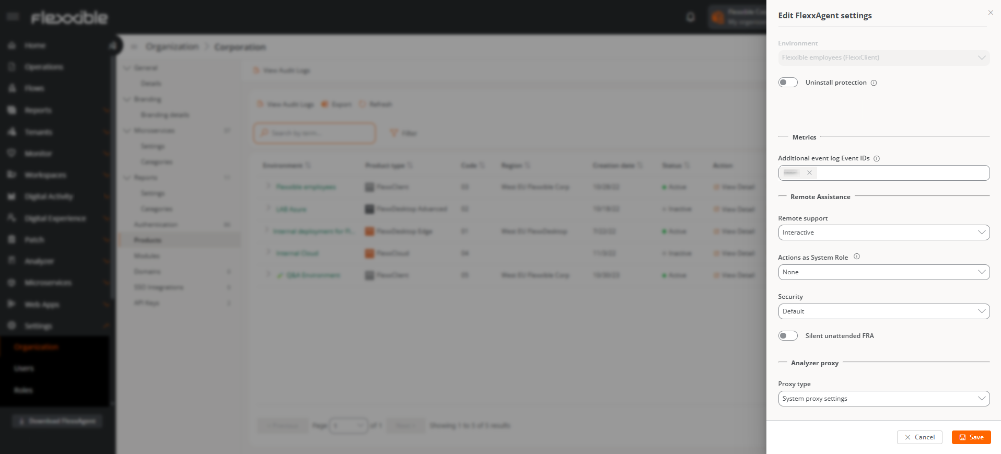
Product
- Go to
Portal->Settings->Organization. - In the menu, click the
Productstab. - Click on
FlexxAgent Settingsin the desired environment.
The established configuration will apply to all organization reporting groups.
Reporting Groups
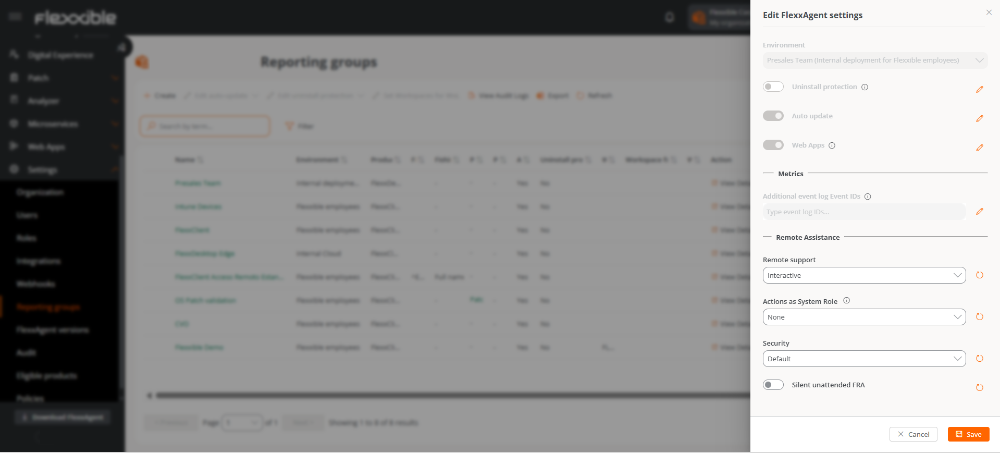
Each reporting group can edit its own remote assistance settings to suit its needs.
- Go to
Portal->Settings->Reporting Groups. - Click on
FlexxAgent Settingsin the desired reporting group.
The established configuration will apply to the selected reporting groups.
Configuration Options
In both cases, the configuration is based on the following characteristics:
Remote Assistance
Allows defining the type of remote assistance to be used at the organization level or at the reporting group level.
Available options:
- None: the device will not be able to receive remote assistance.
- Interactive (attended)
- Interactive and unattended
- Dynamic
System Role Actions
Define which Workspaces user role can run applications (CMD, PowerShell, Task Manager, and Regedit) as a system user in the assisted user's session during a remote session.
This feature can pose a risk if used incorrectly.
Security
Allows selecting between:
- Default
- Simplified
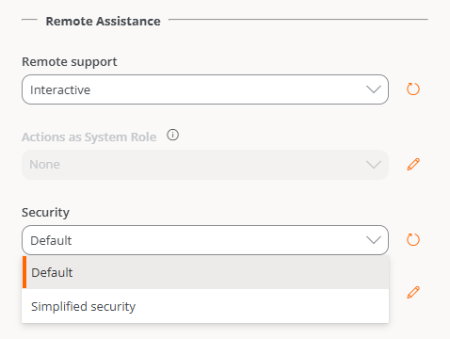
After modifying the Security configuration, it may take a few minutes for it to apply to all devices. In some cases, restarting the computer may be necessary.
Simplified Security
This functionality allows reducing the time needed to start a remote assistance session without having practical effects at the security level.
At the security level, the usual conditions are maintained.
This feature is disabled by default.
Differences between default and simplified security
1. Remote Assistance Service Execution Mode
| Default Security | Simplified Security |
|---|---|
| Service execution is performed on demand in each session. In interactive assistance, the executable is launched in the user's session, and in unattended assistance, the service is installed. At the end of the session, the process stops or the service is uninstalled. | FlexxAgent automatically installs the service. Configures it (including parameters like proxy), shuts it down and disables it. Enabling and starting it only when receiving a remote assistance request from Portal. |
2. File names and paths, services, and processes
| Security Type | Remote Assistance | AnyDesk Process Name | Process Path | Service Name |
|---|---|---|---|---|
| Default | Interactive (attended) | FlexxibleRemoteAssistance_Input.exe | C:\Users\xxxxx\FLXRA\FlexxibleRemoteAssistance_Input.exe | — |
| Default | Unattended | FlexxibleRemoteAssistance-53595ae9.exe | c:\Program Files\flexxible\flexxagent\FLXRA\FlexxibleRemoteAssistance\FlexxibleRemoteAssistance-53595ae9.exe | AnyDesk-53595ae9 |
| Simplified | Interactive (attended) and Unattended | AnyDesk-53595ae9_msi.exe | c:\Program Files (x86)\AnyDesk-53595ae9_msi\AnyDesk-53595ae9_msi.exe | AnyDesk-53595ae9_msi |
Simplified Security Requirements
- FlexxAgent version 26.4.1.0 or later on the remote device.
- Configuration enabled in the corresponding reporting group.
Limitations
This functionality is available for all devices, except:
- Virtual machines with Windows Client (Windows 7, 8, 10, 11)
- Devices with FlexxAgent Cross-Platform (this functionality is coming soon).
Advantages
-
Reduction of remote assistance file generation time, between 50% and 85% depending on the type of assistance.
-
The key combination
Ctrl + Alt + Delis supported in both interactive (attended) and unattended assistance.
Checks
-
To verify that the agent is configured with Simplified Security:
- Review Windows services on the device.
- Check if the AnyDesk Client Service exists.
- This service, except for an active remote assistance session, should be stopped and disabled.
-
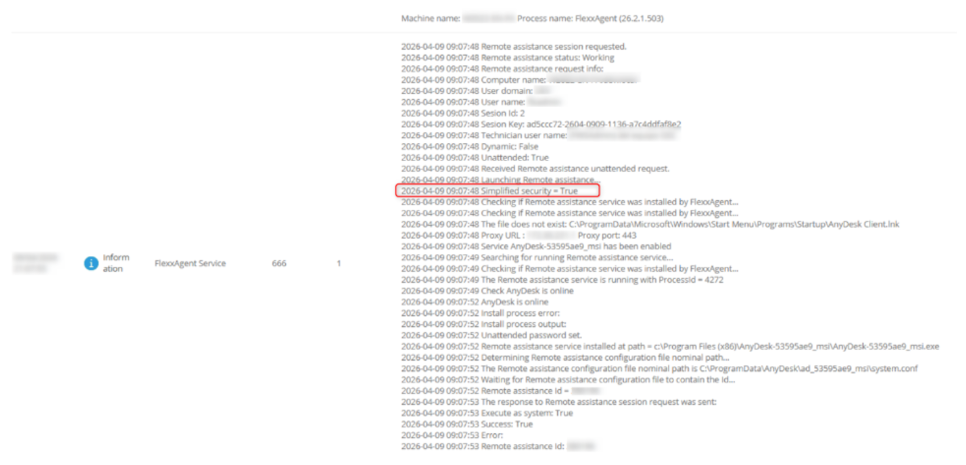
To know if remote assistance is running in Simplified Security mode:
Each remote assistance session generates the event
EventLogId 666on the target device, visible from the device itself or from theEvent Logtab in Workspaces.This event includes a line indicating the execution mode of remote assistance for that session.
FRA Silent Unattended
- Allows performing unattended remote assistance without showing on screen that assistance is taking place.
- Useful on devices like kiosks or computers with sessions visible to the public.
This feature is disabled by default.
Types of remote assistance
1. Interactive (attended)
Allows the operator to connect to a device and take control of the user's active session, with prior consent.
This connection mode provides secure and supervised access to the user's environment, facilitating real-time issue resolution and support actions.
2. Interactive and Unattended
Aimed at server or kiosk-type devices, this type of assistance allows an operator to access and control a device without the need for a user to be present.
When initiating the connection, FlexxAgent displays a dynamic password to the operator, necessary to start the process. This regenerates in each session, so it is not recommended to store it.
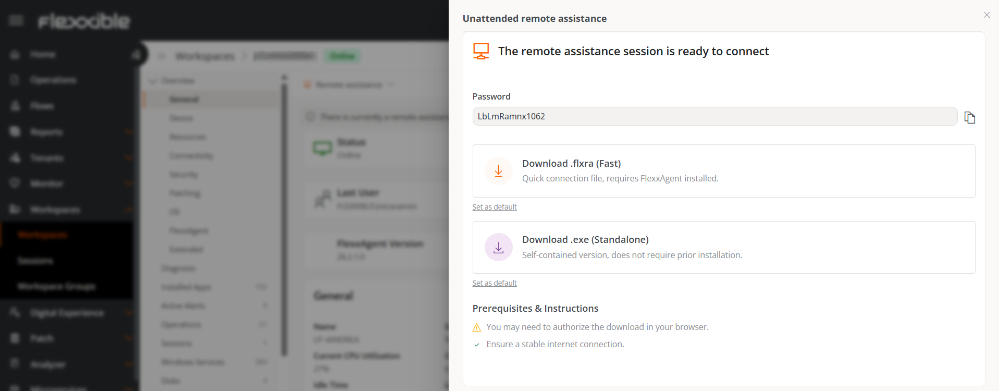
In unattended remote assistance scenarios on devices already equipped with a previous installation of AnyDesk (public version), the following issue has been identified:
An unexpected error occurred while preparing the remote assistance session: An exception occurred when installing Remote assistance as a service for unattended access.
Remote assistance was already installed on the destination machine, and setting a new password for unattended access would break it. If you know the password, you can start an unattended session by using your Remote assistance client.
Cause: the system tries to install the unattended access service but detects that it is already installed on the target device. Trying to set a new password may compromise or cause the existing configuration to malfunction.
Recommendation: uninstall AnyDesk from the device.
3. Dynamic
This type of assistance allows the operator to access the remote device regardless of whether there are active sessions on it.
- If there's an active session, the interactive (attended) assistance process begins.
- If no sessions are active, the unattended remote assistance starts, even allowing login with other accounts without interfering with user data.
Any type of remote assistance will be interrupted if FlexxAgent is restarted during its execution.
Running Flexxible Remote Assistance
Remote assistance can be performed at the device or session level.
Appliance
-
Access
Portal->Workspaces->Workspaces. -
In the table, select the device on which you want to perform assistance.
-
Click on the
Remote Assistancebutton. -
Select the type of assistance.
-
Wait a few seconds and download the activation file.
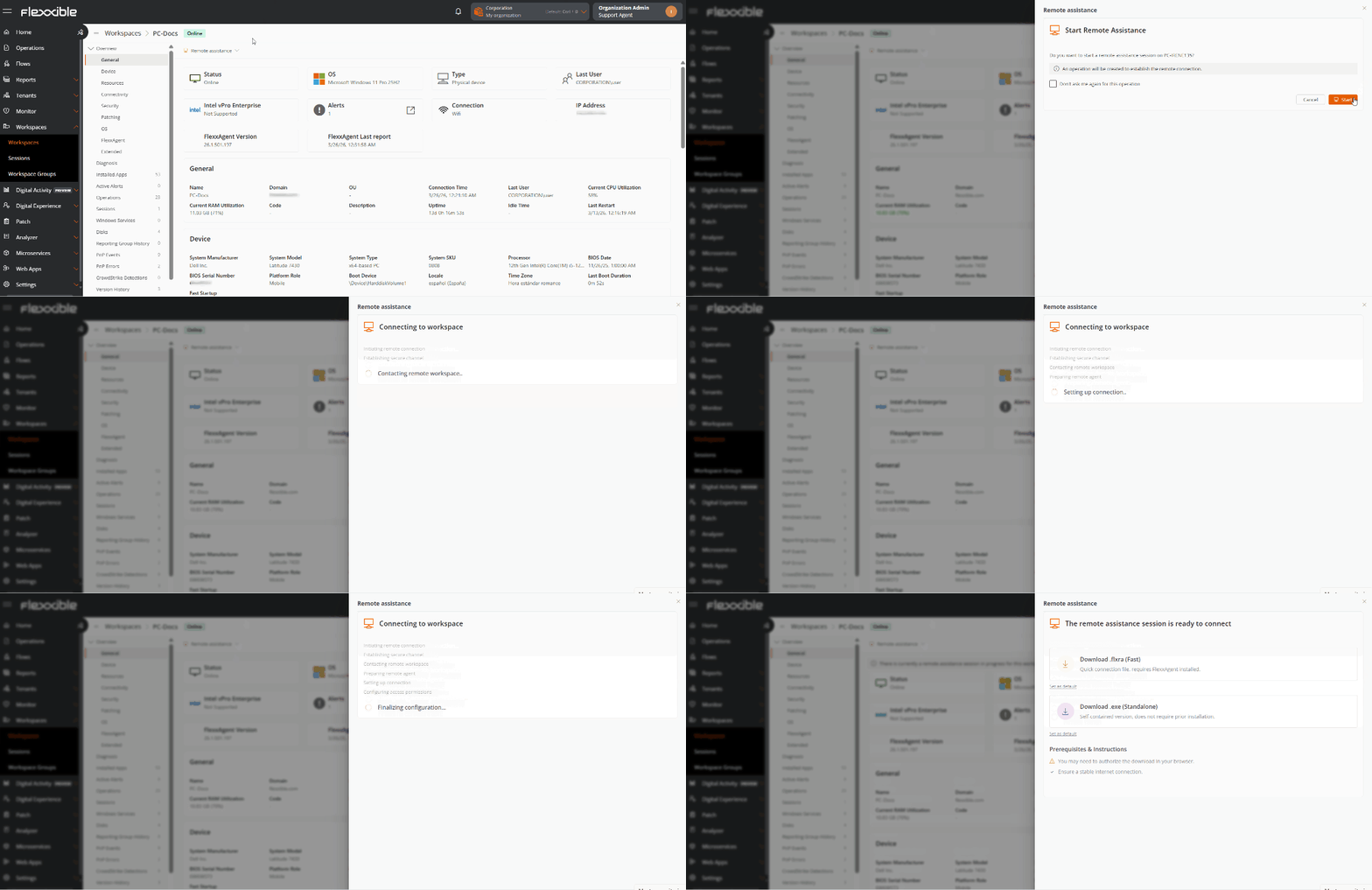
-
User consent will be requested before the operator can take control.
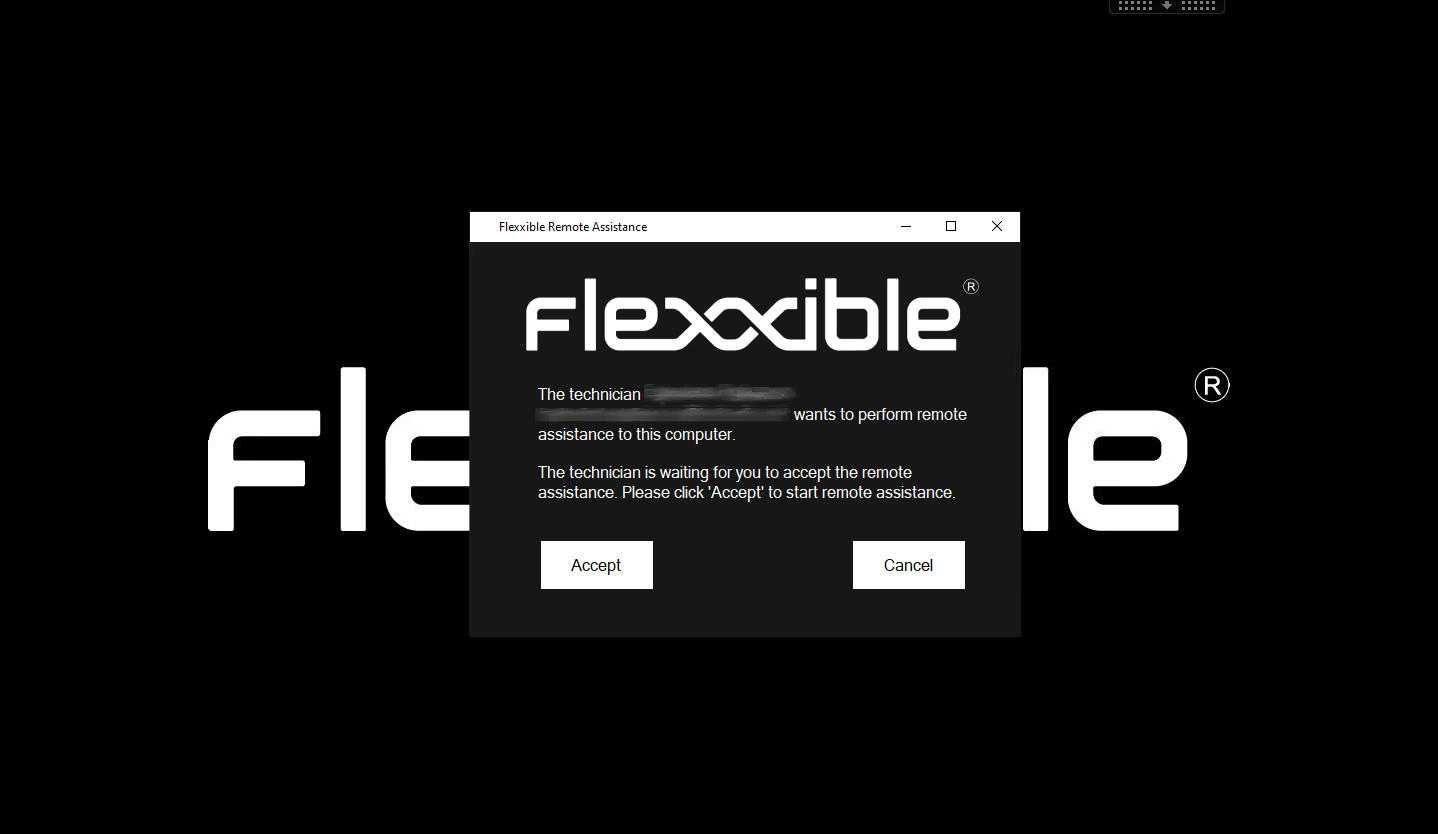
-
Begin remote assistance.
When remote assistance is in process, the device detail view displays the message:
Currently, there's an ongoing remote assistance session for this workspace. For more information, see the section Operations.

Session
-
Access
Portal->Workspaces->Sessions. -
In the table, select the session on which you want to perform assistance.
-
Click on the
Remote Assistancebutton. -
Select the type of assistance.
-
Wait a few seconds and download the activation file.
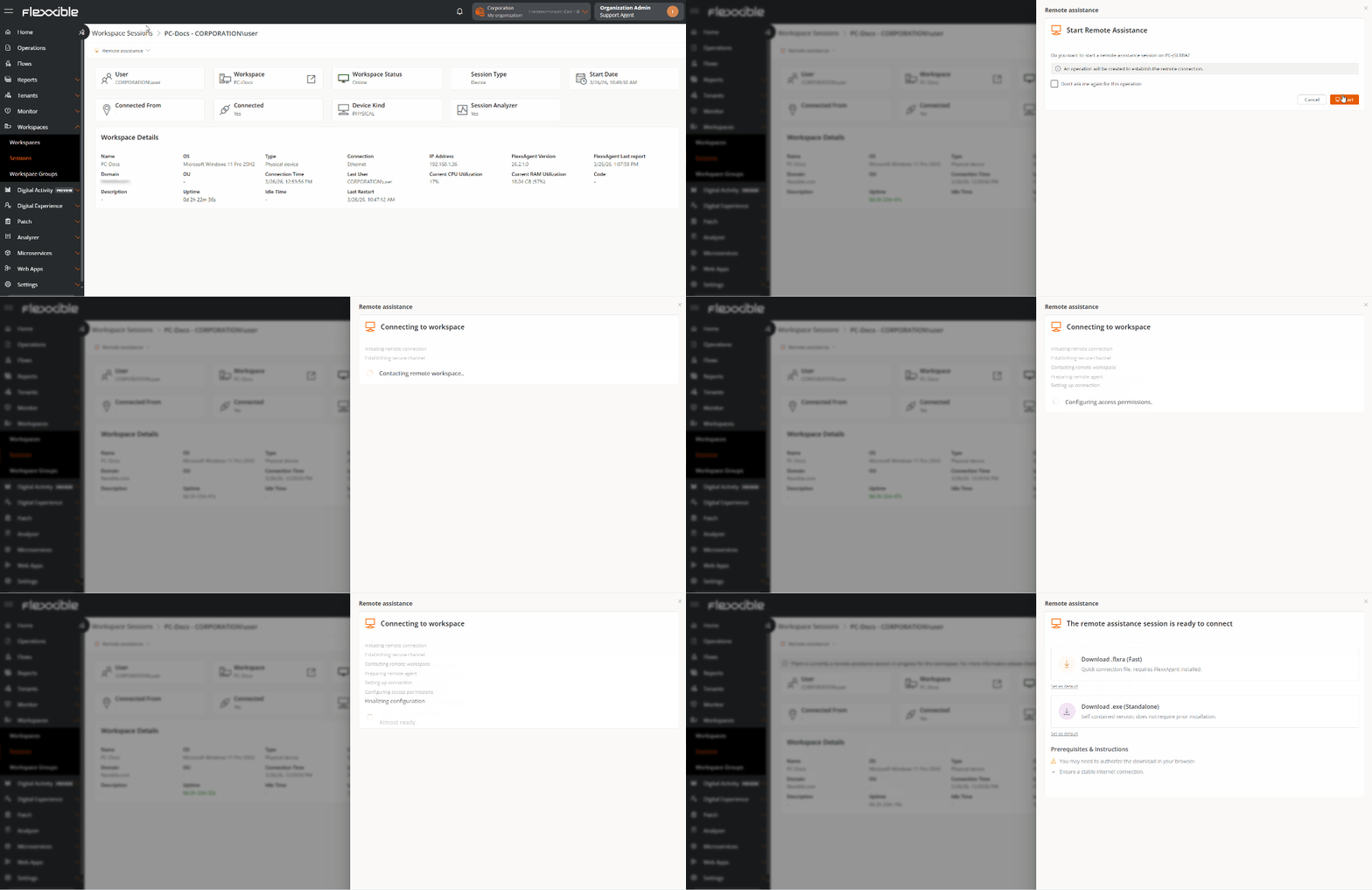
-
User consent will be requested before the operator can take control.
-
Begin remote assistance.
When remote assistance is in process, the device detail view displays the message:
Currently, there's an ongoing remote assistance session for this workspace. For more information, see the section Operations.

Activation Files
To provide the assistance service, the operator must download an activation file, which will depend on whether the supporting device has FlexxAgent installed or not.
Devices with FlexxAgent installed
The operator must download and execute the Flexxible Remote Assistance file, which has the extension .flxra.
- Runs without installation, with user permissions.
- Remains active only during the session.
- Once finished, it stops and the file is automatically deleted from the system.
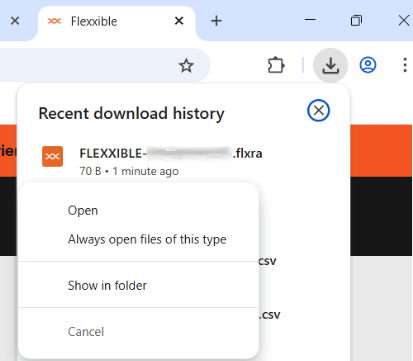
Flexxible recommends configuring the browser to directly open this type of file (.flxra), thus avoiding having to manually access the Downloads folder to execute them.
To do this, once the file is downloaded (without opening it), access the browser's download history from the navigation bar, right-click on the file, and select the option Always open files of this type.
Devices without FlexxAgent installed
The operator must click Download and execute the file with the .exe extension.
- Runs without installation, with user permissions.
- Remains active only during the session.
- The file is not automatically deleted after the session ends.
In both cases, the user's consent will be required before the operator can take control.
-
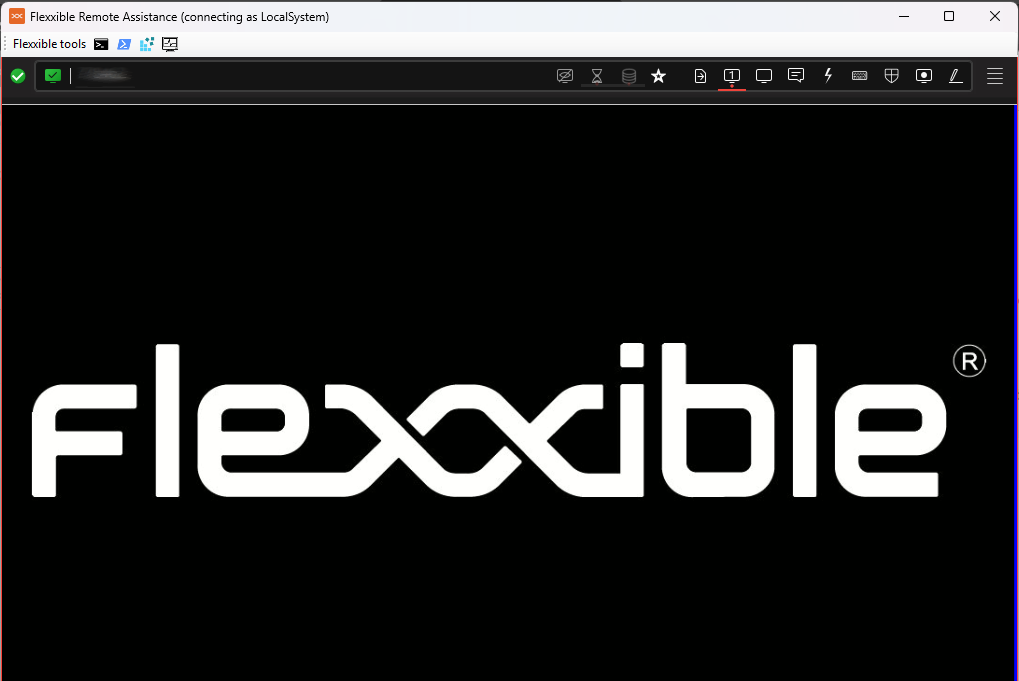
View from the operator's screen:
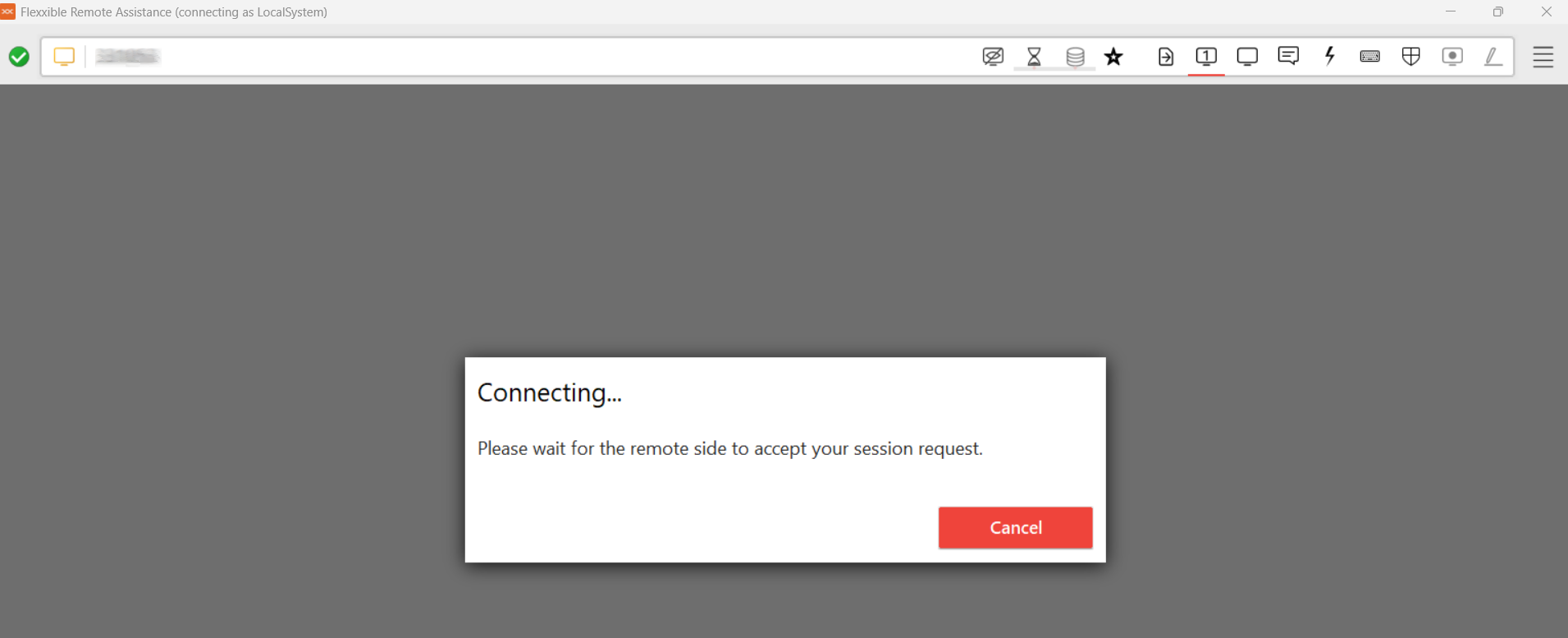
-
View from the user's screen:
Even if the file is executed without administrative privileges, the operator will have access to administrative tools through Flexxible Tools.
Preferences for downloading the activation file
-
When the remote assistance process starts, the operator can choose, via the
Set as defaultbutton, which type of file will be downloaded as default from then on.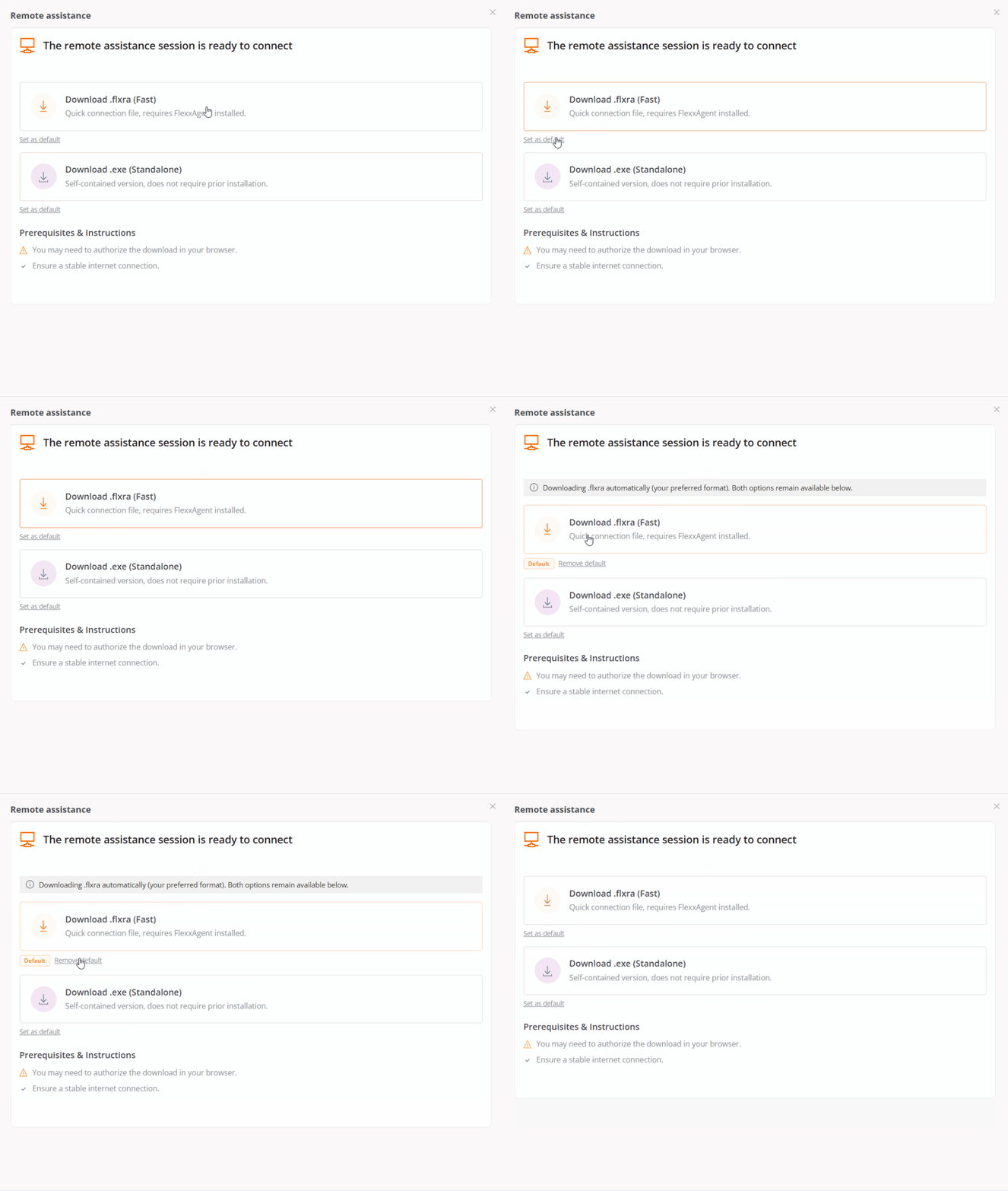
-
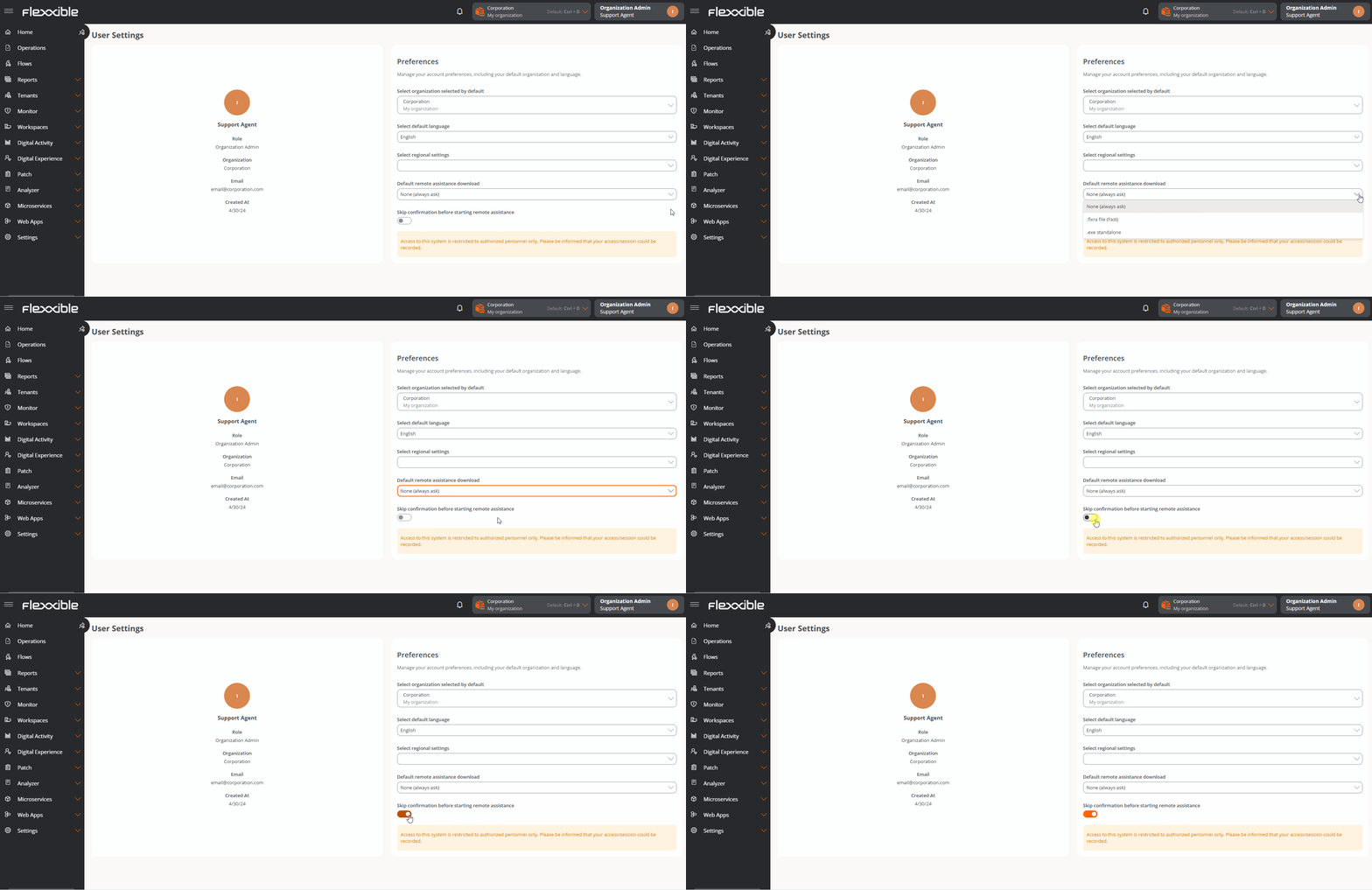
From the User Settings screen, you can define which type of file will be downloaded by default and if you want to skip confirmation before starting assistance.
Generated Processes
Executing the activation file starts two processes:
- FlexxAgent.exe
- FlexxibleRA.exe

Operation through proxy
From the operator's point of view
When executing the activation file, FlexxAgent checks for the Proxy_Url key:
- If it detects it, it uses it.
- If not, it runs AnyDesk in autodetection mode.
From the end-user's point of view
FlexxAgent checks if the proxy is configured.
- If it detects it, it uses it.
- If not, it runs AnyDesk in autodetection mode.
If the proxy configuration registry keys don't exist, it will check if the OS has the proxy configured.
- If it detects it and it is accessible, it uses it.
- If not, it runs AnyDesk in autodetection mode.
Flexxible Tools
The remote assistance file executes with the user's permissions. If they don't have admin privileges, the operator can use Flexxible Tools.
Flexxible Tools, available in interactive (attended) remote assistances, allows the operator to execute administrative tools.
- CMD
- PowerShell
- Registry editor
- Task Manager
Settings
Flexxible Tools can be activated for users depending on their role in Portal.
Flexxible Tools requires FlexxAgent version 25.10 or higher installed. And both the operator's device and the assisted device must belong to the same agent environment.