Webhooks
Webhooks is a feature that allows Portal to integrate with third-party tools to send notifications when certain events occur in the organization.
Available events:
- Active alert
- Executed microservice
- Object created
- Object modified
- Object deleted
- Operation executed
- Operation executed in a workspace
When one of these events occurs, Portal makes an HTTP call to the URL configured by the organization and sends a message with the corresponding information. The target application can use this data to perform actions such as creating a ticket in an ITSM system, sending a message via Slack or Microsoft Teams, or sending an email, among others.
This tool can only be configured by a user with the Organization Admin role.
Overview
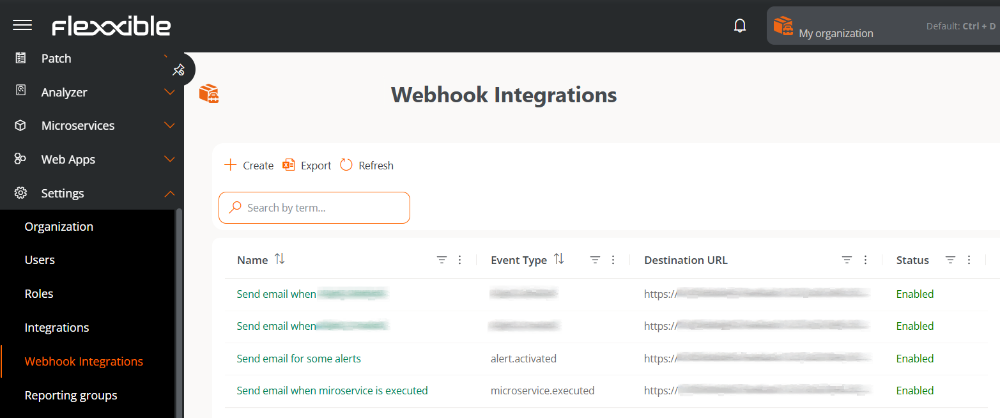
The main screen shows the list of webhooks configured in the organization, indicating whether they are enabled or disabled. The table includes:
- Name. Name assigned to the webhook. By clicking, you can access its detail view.
- Event Type. Event that will trigger the webhook.
- Target URL. Address of the external system that receives the event and acts according to the information provided in the message.
- Status. Indicates whether the webhook is Enabled or Disabled.
Create a webhook integration
To create a new webhook, follow these steps:
-
In Portal, go to
Configuration->Webhook Integrations. -
Click on
New. -
Fill out and configure each section of the form:
Overview
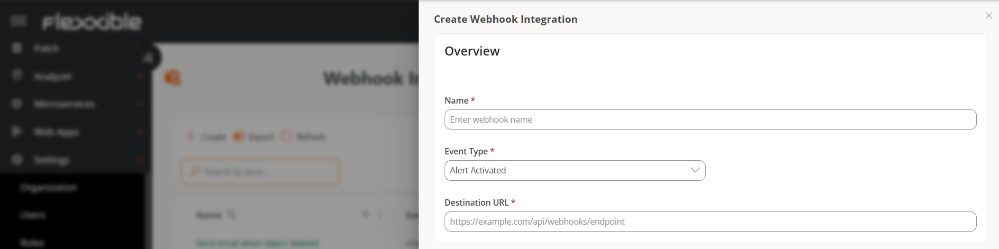
- Name. Name assigned to the webhook.
- Event Type. Event that will trigger the webhook.
- Target URL. Address of the external system that receives the event and acts according to the information provided in the message.
Items
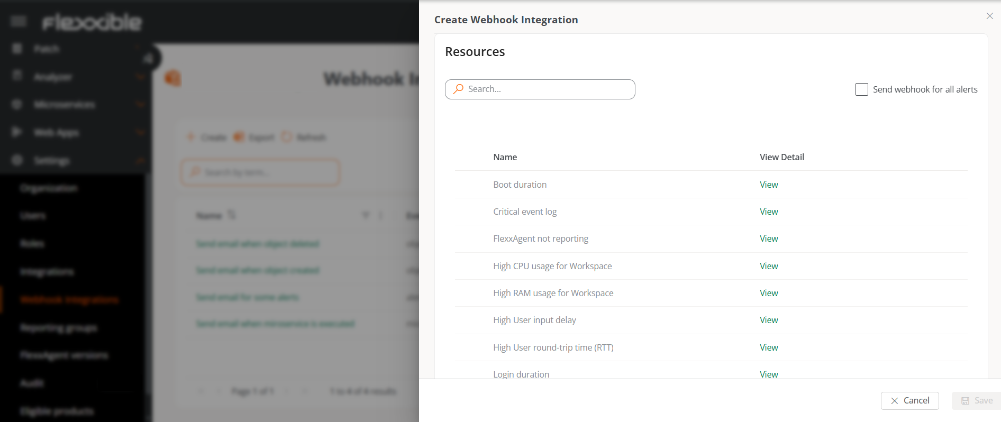
The content of this table depends on the selected event type.
-
Active alert
-
Shows the list of active alerts in the organization to select which ones will send the webhook.
-
Send webhook for all alerts- Activates the webhook for all alerts.
-
-
Executed microservice
-
Shows the list of enabled microservices to select which ones will send the webhook.
-
Send webhook for all microservices- Activates the webhook for all microservices. -
In both cases, the
Viewbutton allows you to access the resource detail view.
-
-
Object created, Object modified, or Object deleted
-
Shows a list to select the object that will send the webhook after the corresponding action.
-
Send webhook for all objects- Activates the webhook for all objects.
-
-
Operation executed
-
Shows a list to select the operation that will send the webhook when executed.
-
Send webhook for all operations- Activates the webhook for all operations.
-
-
Operation executed in a workspace
-
Shows a list to select the operation that will send a webhook for each device on which it has been executed.
-
Send webhooks for all operations executed in each workspace- Activates the webhook for all operations by device.
note-
Operations can be executed on one or more devices.
-
The Operation executed event allows sending a webhook globally.
-
The Operation executed in a workspace event allows sending a webhook for each of the devices on which the operation has been executed.
Example:
If the
Restartoperation is executed on three devices simultaneously, the following will be generated:- A webhook notification of type Operation executed.
- Three webhook notifications of type Operation executed in a workspace.
-
Message Configuration
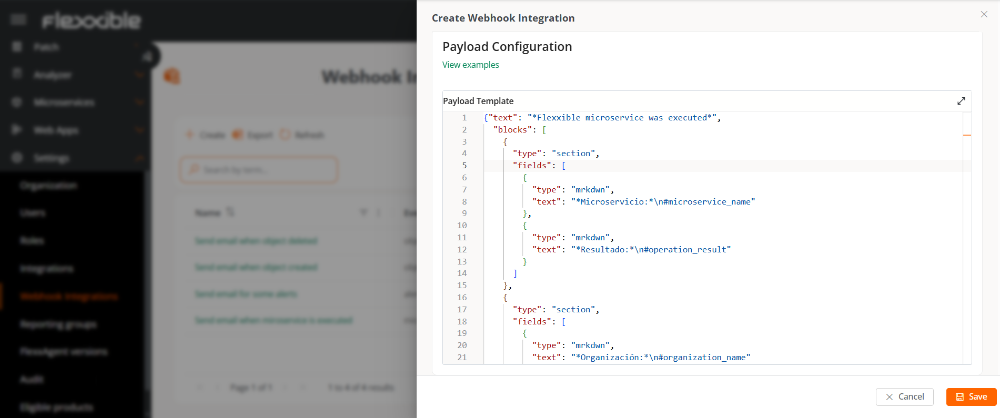
This section defines the message that will be sent when the event occurs. The configuration uses JSON format and determines the structure and content of the message transmitted to the external system.
Variables are automatically replaced by real values when the event occurs.
-
Click on
Save.
An organization should not have two webhooks with the same configuration because it could generate duplicate sends.
Available variables for the message
All event types
| Variables | Caption |
|---|---|
| #event_type | Event Type |
| #organization_id | Organization Id |
| #organization_name | Organization/Tenant name |
| #timestamp | Event date and time (ISO 8601) |
Active alert
| Variables | Caption |
|---|---|
| #alert_name | Alert name |
| #alert_information | Additional alert information |
| #alert_start | Alert start date and time (ISO 8601) |
| #alert_element | Element that triggered the alert |
| #workspace_id | Workspace ID |
| #workspace_name | Workspace Name |
| #workspace_last_user | Last user who used the workspace |
| #workspace_reporting_group_id | Reporting group Id |
| #workspace_reporting_group_name | Name of the reporting group |
| #workspace_internal_id | Workspace internal ID |
Example template
{
    "message": {
        "event_type": "#event_type",
        "organization_id": "#organization_id",
        "organization_name": "#organization_name",
        "workspace_id": "#workspace_id",
        "workspace_name": "#workspace_name",
        "workspace_last_user": "#workspace_last_user",
        "reporting_group_id": "#workspace_reporting_group_id",
        "reporting_group_name": "#workspace_reporting_group_name",
        "alert_name": "#alert_name",
        "alert_information": "#alert_information",
        "alert_start": "#alert_start",
        "alert_element": "#alert_element",
        "timestamp": "#timestamp"
    }
}
Executed microservice
| Variables | Caption |
|---|---|
| #operation_id | Executed operation Id |
| #microservice_id | Microservice ID |
| #microservice_name | Microservice name |
| #operation_startdate | Operation start date and time (ISO 8601) |
| #operation_enddate | Operation end date and time (ISO 8601) |
| #operation_result | Operation result (Completed, Error, Timeout, or Cancelled) |
| #workspace_id | Workspace ID |
| #workspace_name | Workspace Name |
| #workspace_last_user | Last user who used the workspace |
| #workspace_reporting_group_id | Reporting group Id |
| #workspace_reporting_group_name | Name of the reporting group |
| #operation_started_by | User or component that started the microservice execution |
| #workspace_internal_id | Workspace internal ID |
Example template
{
    "message": {
      "event_type" : "#event_type",
      "organization_id" : "#organization_id",
      "organization_name" : "#organization_name",
      "timestamp" : "#timestamp",
      "workspace_id" : "#workspace_id",
      "workspace_name" : "#workspace_name",
      "workspace_last_user" : "#workspace_last_user",
      "reporting_group_id" : "#workspace_reporting_group_id",
      "reporting_group_name" : "#workspace_reporting_group_name",
      "operation_id": "#operation_id",
      "microservice_id": "#microservice_id",
      "microservice_name": "#microservice_name",
      "operation_startdate": "#operation_startdate",
      "operation_enddate": "#operation_enddate",
      "operation_result": "#operation_result"
    }
}
Object created, modified, or deleted
| Variables | Caption |
|---|---|
| #event_type | Event Type |
| #organization_id | Organization Id |
| #organization_name | Organization/Tenant name |
| #timestamp | Event date and time (ISO 8601) |
| #entity_type | Entity type |
| #entity_name | Entity name |
| #entity_id | Entity ID |
| #action | Action performed (Creation, Modification, or Deletion) |
| #triggered_by_name | Name of the user who triggered the event |
| #triggered_by_email | Email address of the user who triggered the event |
| #triggered_by_id | ID of the user who triggered the event |
Example template
{
  "message": {
    "event-type": "#event_type",
    "organization": {
      "id": "#organization_id",
      "name": "#organization_name"
    },
    "entity": {
      "entity-type": "#entity_type",
      "object-name": "#entity_name",
      "object-id": "#entity_id"
    },
    "metadata": {
      "action": "#action",
      "timestamp": "#timestamp",
      "user-name": "#triggered_by_name",
      "useremail": "#triggered_by_email",
      "user-id": "#triggered_by_id"
    }
  }
}
Operation executed
| Variables | Caption |
|---|---|
| #event_type | Event Type |
| #timestamp | Event date and time (ISO 8601) |
| #organization_id | Organization Id |
| #organization_name | Organization/Tenant name |
| #operation_type | Operation Type |
| #description | Operation description |
| #status | Current execution status of the operation |
| #summary | Operation summary (JSON) |
| #started_by | User who started the operation |
| #created_at | Date and time of operation creation (ISO 8601) |
| #started_at | Operation start date and time (ISO 8601) |
| #finished_at | Operation end date and time (ISO 8601) |
| #total_workspaces | Total number of workspaces processed |
| #total_warnings | Total number of executions with warnings during the operation |
| #total_errors | Total number of executions with errors during the operation |
| #flow_id | Associated flow ID |
| #microservice_id | Associated microservice ID |
| #fra_type | Flexxible Remote Assistance (FRA) Type |
| #fra_start | Flexxible Remote Assistance (FRA) start date and time (ISO 8601) |
| #fra_end | Flexxible Remote Assistance (FRA) end date and time (ISO 8601) |
Example template
{
  "message": {
    "event_type": "#event_type",
    "timestamp": "#timestamp",
    "organization": {
      "id": "#organization_id",
      "name": "#organization_name"
    },
    "operation": {
      "type": "#operation_type",
      "description": "#description",
      "status": "#status",
      "summary": "#summary",
      "started_by": "#started_by",
      "created_at": "#created_at",
      "started_at": "#started_at",
      "finished_at": "#finished_at"
    },
    "results": {
      "total_workspaces": "#total_workspaces",
      "total_warnings": "#total_warnings",
      "total_errors": "#total_errors"
    },
    "context": {
      "flow_id": "#flow_id",
      "microservice_id": "#microservice_id",
      "fra_type": "#fra_type",
      "fra_start": "#fra_start",
      "fra_end": "#fra_end"
    }
  }
}
Operation executed in a workspace
| Variables | Caption |
|---|---|
| #event_type | Event Type |
| #timestamp | Event date and time (ISO 8601) |
| #organization_id | Organization Id |
| #organization_name | Organization/Tenant name |
| #operation_type | Operation Type |
| #description | Operation description |
| #operation_status | Operation status |
| #started_by | User who started the operation |
| #created_at | Date and time of operation creation (ISO 8601) |
| #started_at | Operation start date and time (ISO 8601) |
| #finished_at | Operation end date and time (ISO 8601) |
| #operation_flow_id | Operation-associated flow ID |
| #operation_microservice_id | Operation-associated microservice ID |
| #operation_fra_type | Flexxible Remote Assistance (FRA) Type |
| #operation_fra_start | Flexxible Remote Assistance (FRA) start date and time (ISO 8601) |
| #operation_fra_end | Flexxible Remote Assistance (FRA) end date and time (ISO 8601) |
| #workspace_id | Workspace ID |
| #workspace_name | Workspace Name |
| #workspace_last_user | Last user who used the workspace |
| #workspace_reporting_group_id | Reporting group Id |
| #workspace_reporting_group_name | Name of the reporting group |
| #workspace_operation_result | Result of the operation in the workspace |
| #workspace_operation_startdate | Operation start date and time in the workspace (ISO 8601) |
| #workspace_operation_enddate | Operation end date and time in the workspace (ISO 8601) |
| #workspace_internal_id | Workspace internal ID |
Example template
{
  "message": {
    "event_type": "#event_type",
    "timestamp": "#timestamp",
    "organization": {
      "id": "#organization_id",
      "name": "#organization_name"
    },
    "operation": {
      "type": "#operation_type",
      "description": "#description",
      "status": "#operation_status",
      "started_by": "#started_by",
      "created_at": "#created_at",
      "started_at": "#started_at",
      "finished_at": "#finished_at"
    },
    "context": {
      "flow_id": "#operation_flow_id",
      "microservice_id": "#operation_microservice_id",
      "fra_type": "#operation_fra_type",
      "fra_start": "#operation_fra_start",
      "fra_end": "#operation_fra_end"
    },
    "workspace": {
      "id": "#workspace_id",
      "name": "#workspace_name",
      "last_user": "#workspace_last_user",
      "reporting_group": {
        "id": "#workspace_reporting_group_id",
        "name": "#workspace_reporting_group_name"
      }
    },
    "execution": {
      "result": "#workspace_operation_result",
      "start_date": "#workspace_operation_startdate",
      "end_date": "#workspace_operation_enddate"
    }
  }
}
Slack
Below is an example of a template compatible with Slack Incoming Webhooks, which can be used as a basis for constructing the message sent from Portal:
{
  "text": "*Flexxible microservice was executed*",
  "blocks": [
    {
      "type": "section",
      "fields": [
        {
          "type": "mrkdwn",
          "text": "*Microservicio:*\n#microservice_name"
        },
        {
          "type": "mrkdwn",
          "text": "*Resultado:*\n#operation_result"
        }
      ]
    },
    {
      "type": "section",
      "fields": [
        {
          "type": "mrkdwn",
          "text": "*Organización:*\n#organization_name"
        },
        {
          "type": "mrkdwn",
          "text": "*Workspace:*\n#workspace_name"
        }
      ]
    },
    {
      "type": "section",
      "fields": [
        {
          "type": "mrkdwn",
          "text": "*Inicio:*\n#operation_startdate"
        },
        {
          "type": "mrkdwn",
          "text": "*Fin:*\n#operation_enddate"
        }
      ]
    }
  ]
}
For more information on message formatting, available blocks, and best practices, check the official Slack guide.
Microsoft Teams
In Microsoft Teams, the templates can be accessed directly from the settings of each channel.
For details on how to correctly configure an incoming webhook and what structure the JSON template should have, check the official Microsoft guide.
Detail view
By selecting a webhook from the table, you can access its detail view:
Overview
Displays cards with basic information: Status, Created on, and Updated on.
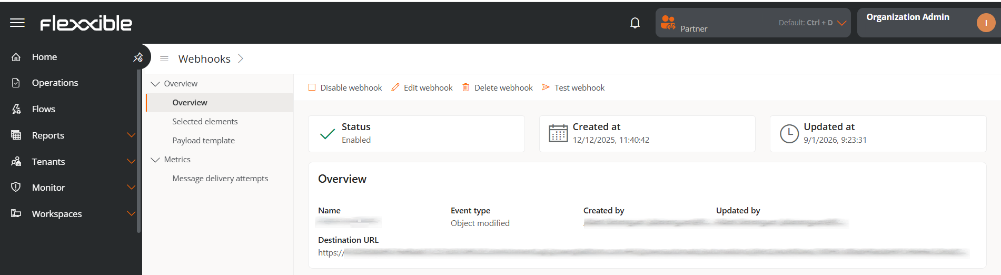
1. Overview
- Name. Name assigned to the webhook.
- Event Type. Event that will trigger the webhook.
- Created by. User who created the event.
- Updated by. Last user who modified the webhook.
- Target URL. Address of the external system that receives the event and acts according to the information provided in the message.
2. Selected Resources
Shows the associated resources according to the event type.
3. Payload Template
Displays the JSON structure configured for the webhook.
Metrics
Message delivery attempts
This tab presents two levels of information. On the top, summary cards with the global status of the messages sent via the webhook are shown:
- Successful messages
- Pending messages
- Messages in progress
- Failed messages
- Total messages
- Success rate
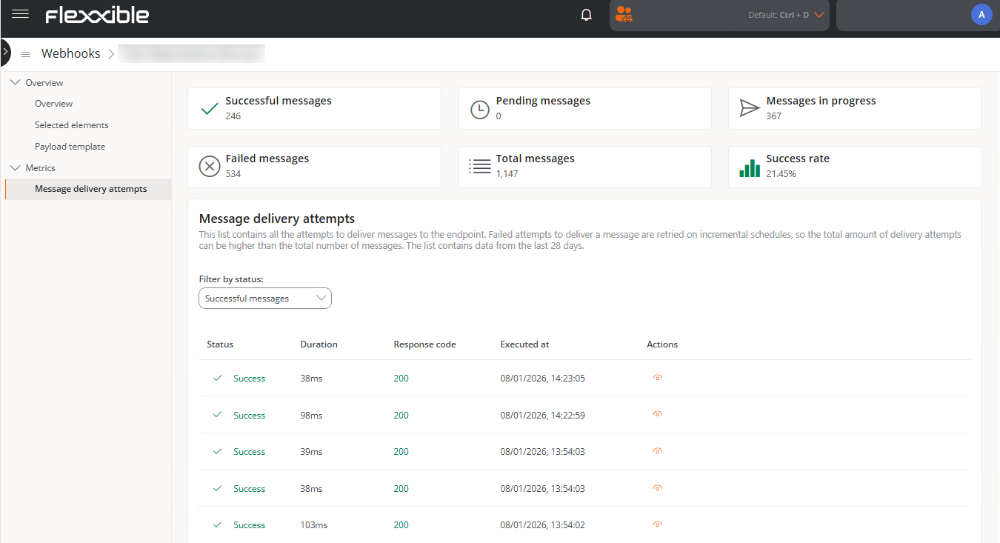
On the bottom, a table is shown with the delivery attempt history for the last 28 days. The records can be filtered according to the following criteria: All attempts, Successful attempts, Pending attempts, Failed attempts, and Attempts in progress.
The table includes the following information:
- Status. Execution result.
- Duration. In milliseconds, time taken for the webhook execution.
- Response code. HTTP code returned on webhook execution.
- Executed on. Date and time when the execution was performed.
- Actions. Opens a window with the execution details.
When a call to the target URL is not completed correctly, the system automatically retries sending the message according to the following schedule:
- Immediately
- After 5 seconds
- After 5 minutes
- After 30 minutes
- After 2 hours
- After 5 hours
- After 10 hours
- After 10 additional hours
Each interval starts from the failure of the previous attempt.
If the message fails three times and succeeds on the fourth attempt, the table will show four attempts (three failed and one successful). However, the system will count it as a single message.
Actions on webhooks
The detail view also allows the following actions on the webhook:

Enable / Disable
Enables or disables the webhook according to its current state.
Webhooks are disabled by default.
Edit
Allows modification:
- Name
- Event Type
- Target URL
- Resources
- Payload Template
Delete
Permanently deletes the webhook. It can not be undone.
Test
Send a message with the content of the template to the configured URL without replacing the variables with real values. The purpose of this action is to validate connectivity and message format.